
I have an app that I submitted to the App Store back in 2017. It was working just fine until a few weeks ago, when Apple released iOS 26. I received an email from a user requesting a new feature. When I tried to open the app, it crashed on startup.
It took me a while to figure out where I had hosted the source code – whatever Git host was popular eight years ago. It turned out to be GitLab. That app was my second or third indie project. I was fairly new to iOS development back then and used a lot of third-party libraries — for literally everything, from custom fonts to making network calls.
I tried for an hour to compile it, but it was hopeless. It was written in Swift 3. Since it was a rather simple app, I decided, “damn it, I’ll just recreate it from scratch in SwiftUI.” It took me a few nights to build the skeleton with the basic functionality.
While testing it, I made sure nothing unusual was happening in the background – no memory leaks, no high CPU usage, etc. The app allows users to search in a SQLite database, get a list of items, and then display a large block of text related to each item.
I had no idea that some of these items had huge text blocks, tens of thousands of characters long. I accidentally tapped on one of them and noticed the app froze. The CPU usage shot up to 99%, and after about 15–20 seconds it finally displayed the text. That was surprising!
My first thought was that the problem was with the FMDB library, but after some trial and error, I ruled that out. Then I suspected the view model – @ObservedObject vs. @StateObject– but that wasn’t it either. At that point, there was nothing obvious left to blame.
Next, I thought maybe there were some strange characters in the text. I queried the table on my desktop, copied the text, and opened it in VS Code. Even VS Code took a few seconds to render it – it was massive.
So I started thinking maybe the issue was simply the length of the text. I went to Google (the good old internet) and searched for something like “showing long text Swift.” On Stack Overflow, I found people mentioning that UILabel can’t handle extremely long text (thousands of characters).
I wanted to confirm that this was really the issue. So I created a new simple app just to display that same text. On the first try, I confirmed that was indeed the problem. But since I was using SwiftUI, it wasn’t UILabel, it was Text. I even tried TextEditor and WKWebView, but neither could render it properly. Wrapping them in a ScrollView only made things worse.
First, I looked for third-party components optimized for displaying large text. I couldn’t find anything (though I didn’t spend much time searching), and I didn’t want to over-engineer it – it’s a simple app, after all.
After thinking about possible solutions, I had two ideas:
1. Horizontal pagination, like swiping left and right. But that didn’t feel right for plain text, that gesture feels more natural for rich media, like images or videos.
2. Infinite scrolling, like you see on Twitter or other text-based social media apps. That one felt more intuitive for reading.
Before implementing it, I wanted to make sure it would actually solve the problem. So I tested the concept by creating a list of Text elements inside a ScrollView, each showing a portion of the long text.
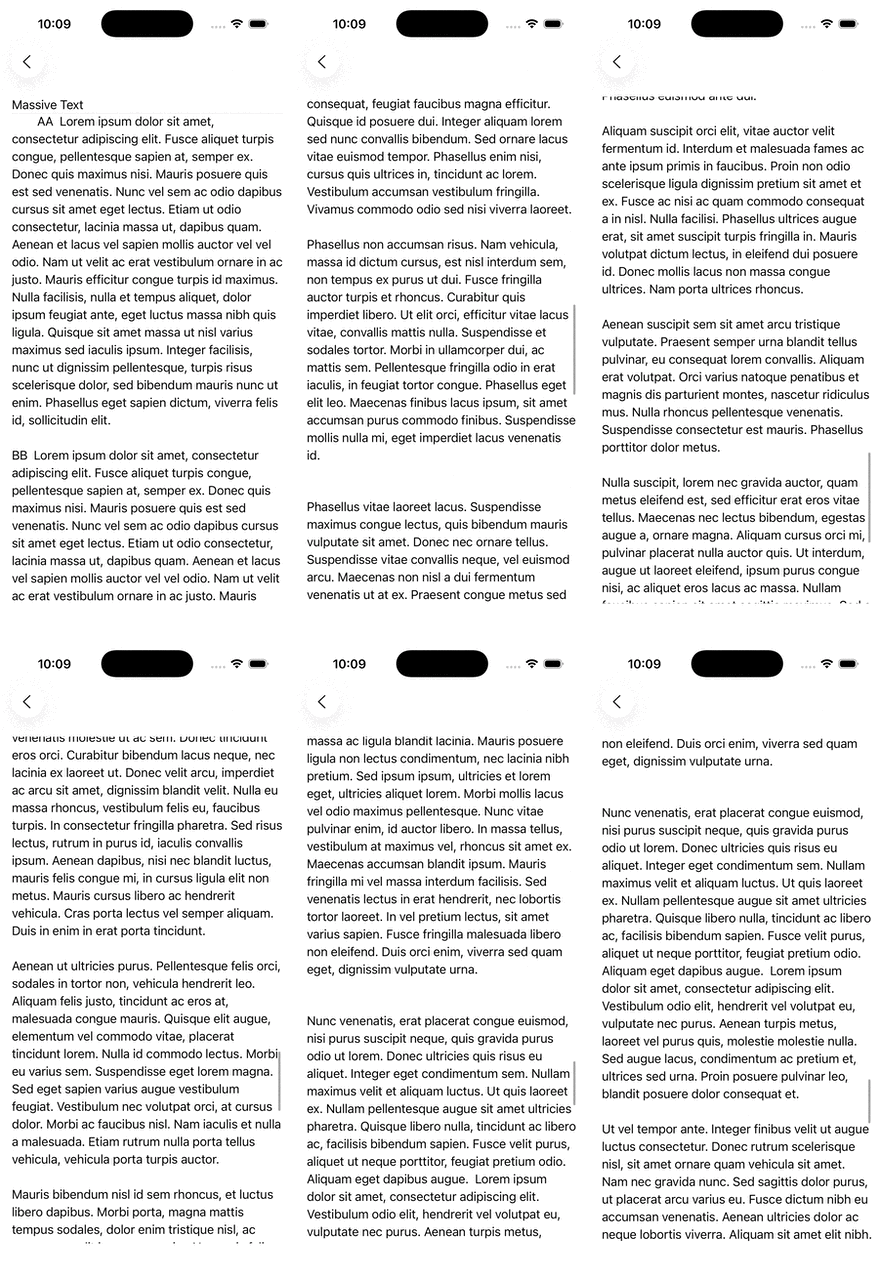
I found that while a single Text view couldn’t handle very large text, an array of smaller Text views inside a ScrollView could visually achieve what I wanted – showing the entire text while allowing the user to scroll smoothly. It worked!
I should mention that memory usage was relatively high, but in my case that didn’t really matter. These large-text cases were rare, and even if a user did open one, closing the screen would free up the memory.
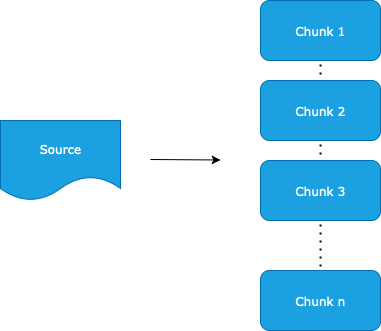
I assumed that most text entries would include line breaks (\n), so I extracted the indices of all newline occurrences, iterated through them, and split the input text based on a fixed number of newline characters.
Then I created two arrays of strings — one to hold the chunked text and another to hold the visible text. Every time the user scrolls to the end of the list, the onBecomingVisible method of the invisibleView triggers, pops the first element from textChunks, and appends it to visibleChunks.
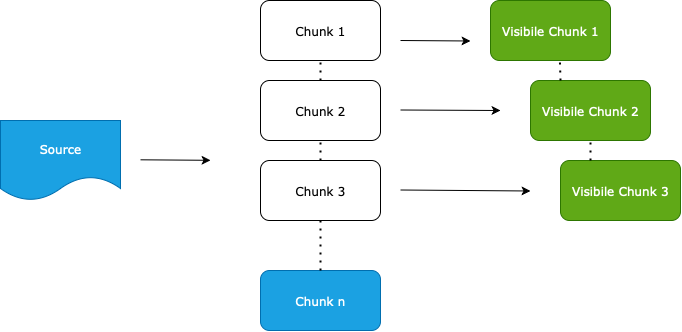
This technique gives the scroll view enough time to lay out its children without blocking the UI, but it’s still resource intensive. To solve this problem, if it becomes an issue, you could create a fixed size window and scan over the textChunks, so you always have a fixed number of Text views in the scroll view.
Now let’s take a look at the code. First, the view modifier that tells the view when it has become visible on the screen:
public extension View {
    func onBecomingVisible(perform action: @escaping () -> Void) -> some View {
        modifier(BecomingVisible(action: action))
    }
}

private struct BecomingVisible: ViewModifier {
    @Environment(\.mainWindowRect) var windowRect

    @State var action: (() -> Void)?

    func body(content: Content) -> some View {
        content.overlay {
            GeometryReader { proxy in
                Color.clear
                    .preference(
                        key: VisibleKey.self,
                        value: windowRect.intersects(proxy.frame(in: .global))
                    )
                    .onPreferenceChange(VisibleKey.self) { isVisible in
                        guard isVisible, let action else { return }
                        action()
                    }
            }
        }
    }

    struct VisibleKey: PreferenceKey {
        static var defaultValue: Bool = false
        static func reduce(value: inout Bool, nextValue: () -> Bool) { }
    }
}
It uses a GeometryReader and PreferenceKey to determine when the view is visible within the global frame passed down from the WindowGroup. In the main view, the immediate child of WindowGroup is a GeometryReader that wraps a NavigationSplitView. The global frame of the app is attached to all children of the NavigationSplitView:
@main
struct LongTextViewerApp: App {
    /// Code
    var body: some Scene {
        WindowGroup {
            GeometryReader { proxy in
                NavigationSplitView(
                    /// Code
                )
                .environment(\.mainWindowRect, proxy.frame(in: .global))
            }
        }
    }
}
In the view that uses this method of displaying text, there is an invisibleView attached to the end of the scroll view, right after the ForEach loop that creates the list of Text views.
var body: some View {
    ScrollView {
        /// Vies
        ForEach(viewModel.visibleChunks) { item in
            Text(item.text)
                .disabled(true)
                .lineLimit(nil)
        }

        /// Views

        if !visibleChunks.isEmpty {
            invisibleView
                .onBecomingVisible {
                       Task {
                           try? await Task.sleep(nanoseconds: 10_000_000)
                           await viewModel.fetchNext()
                       }
                 }
        }

    }
    .padding()
    .task {
        /// Code
    }
}
Let’s take a moment to review the piece of code that splits the text into an array of strings:
/// Splits the given text into smaller parts, separated by the break-line character (`\n`).
/// - Parameters:
///   - input: Input text
///   - textChunks: An array to represent the input the text.
///   - visibleChunks: An array of string that's used as the data source for the text on screen.
///   - strideLength: The number of pieces separated by the break-line character that becomes an item in `textChunks`.
func splitText(input: String,
                       textChunks: inout [IdentifiableText],
                       strideLength: Int) {
    let indices = input.indices(of: "\n")
    if indices.ranges.count <= strideLength {
        textChunks = [IdentifiableText(text: input)]
        return
    }
    let logger = Logger()
    logger.log("Number of indices: \(indices.ranges.count)")
    var startIndex: String.Index? = input.startIndex
    var endIndex: String.Index?

    stride(from: strideLength - 1, through: indices.ranges.count - 1, by: strideLength).forEach { index in
        endIndex = indices.ranges[index].upperBound
        if let start = startIndex, let end = endIndex {
            let chunk = String(input[start..<end])
            textChunks.append(IdentifiableText(text: chunk))
            startIndex =  indices.ranges[index].upperBound
        }
    }
    if let endIndex, endIndex < input.endIndex {
        textChunks.append(IdentifiableText(text: String(input[endIndex...])))
    }
}
There’s a simple check at the beginning of the method to return an array with a single item if the text isn’t very large, based on the assumption that each paragraph has a moderate number of characters and ends with a line break.
Here’s a simple visual example of how this method splits the text and creates an array. Imagine the input text looks like this:
1 Lorem ipsum dolor sit amet, consectetur adipiscing elit.
2 Lorem ipsum dolor sit amet, consectetur adipiscing elit.
3 Lorem ipsum dolor sit amet, consectetur adipiscing elit.
4 Lorem ipsum dolor sit amet, consectetur adipiscing elit.
5 Lorem ipsum dolor sit amet, consectetur adipiscing elit.
6 Lorem ipsum dolor sit amet, consectetur adipiscing elit.
7 Lorem ipsum dolor sit amet, consectetur adipiscing elit.
8 Lorem ipsum dolor sit amet, consectetur adipiscing elit.
9 Lorem ipsum dolor sit amet, consectetur adipiscing elit.
10 Lorem ipsum dolor sit amet, consectetur adipiscing elit.
11 Lorem ipsum dolor sit amet, consectetur adipiscing elit.
12 Lorem ipsum dolor sit amet, consectetur adipiscing elit.
13 Lorem ipsum dolor sit amet, consectetur adipiscing elit.
14 Lorem ipsum dolor sit amet, consectetur adipiscing elit.
15 Lorem ipsum dolor sit amet, consectetur adipiscing elit.
16 Lorem ipsum dolor sit amet, consectetur adipiscing elit.
If we get the indices of the line break occurrences, we’ll find 15 ranges (the last one doesn’t have a break line at the end). Now, if we call the method with these inputs:
splitText(input: text, textChunks: &textChunks, visibleChunks: &visibleChunks, strideLength: 5)and print the first and last items of textChunks, we’ll see:
/// First item:
1 Lorem ipsum dolor sit amet, consectetur adipiscing elit.
2 Lorem ipsum dolor sit amet, consectetur adipiscing elit.

/// Last item:
15 Lorem ipsum dolor sit amet, consectetur adipiscing elit.
16 Lorem ipsum dolor sit amet, consectetur adipiscing elit.
There are also two tests that run this method on an input, then merge the output text and compare it with the original input to make sure they’re identical.
In the golden path, when the text is large enough, the method works just fine. But there’s a caveat when the input text isn’t large enough to fill the screen.
Edge Case
For that test text and a stride length of 5, the output would look like this:
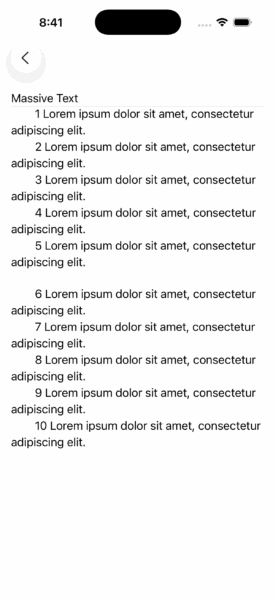
The business logic is correct, but the way the view handles scrolling and fetching more data isn’t quite right. When the view first loads, the text is split into pieces; the first item moves to the visible array, then with the help of our view modifier onBecomingVisible, the second item gets attached to the visible text array. However, the closure passed to the view modifier will be executed only once, because the input text isn’t long enough to fill the entire content area of the scroll view.
In this case (the first working method I could come up with), the view needs to know if the scroll view’s content height is less than its bounds. If it is, it should keep fetching until the content size becomes taller than the height of the scroll view, or there’s nothing more to show.
In the code, there’s a small delay before fetching new data. The reason for that delay is that SwiftUI doesn’t like refreshing the view multiple times per frame. Without the delay, you’ll see console errors complaining about too many view updates per frame. These calculations are straightforward and are done using another view modifier that retrieves the content height of the view.
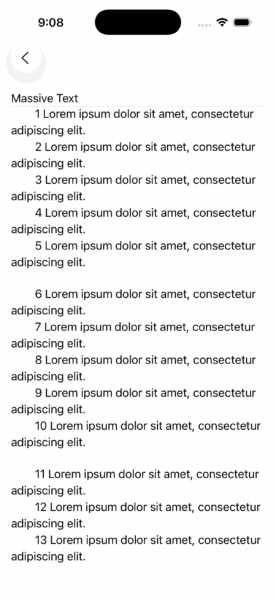
After applying the fix, the view loads the entire text (the rest of the text is off-screen in this image).
This concludes my article. If you have any questions or thoughts, feel free to ask.
You can download the complete code (Updated on October 13, 20205) at https://github.com/maysamsh/swiftui-long-text-viewer
Note: There are three items in the Home Screen when you run the app, the first two are using the standard component with no optimization to load the text, the Very Long Text one might not be able to even show the text on some iPhones due to it’s large size.