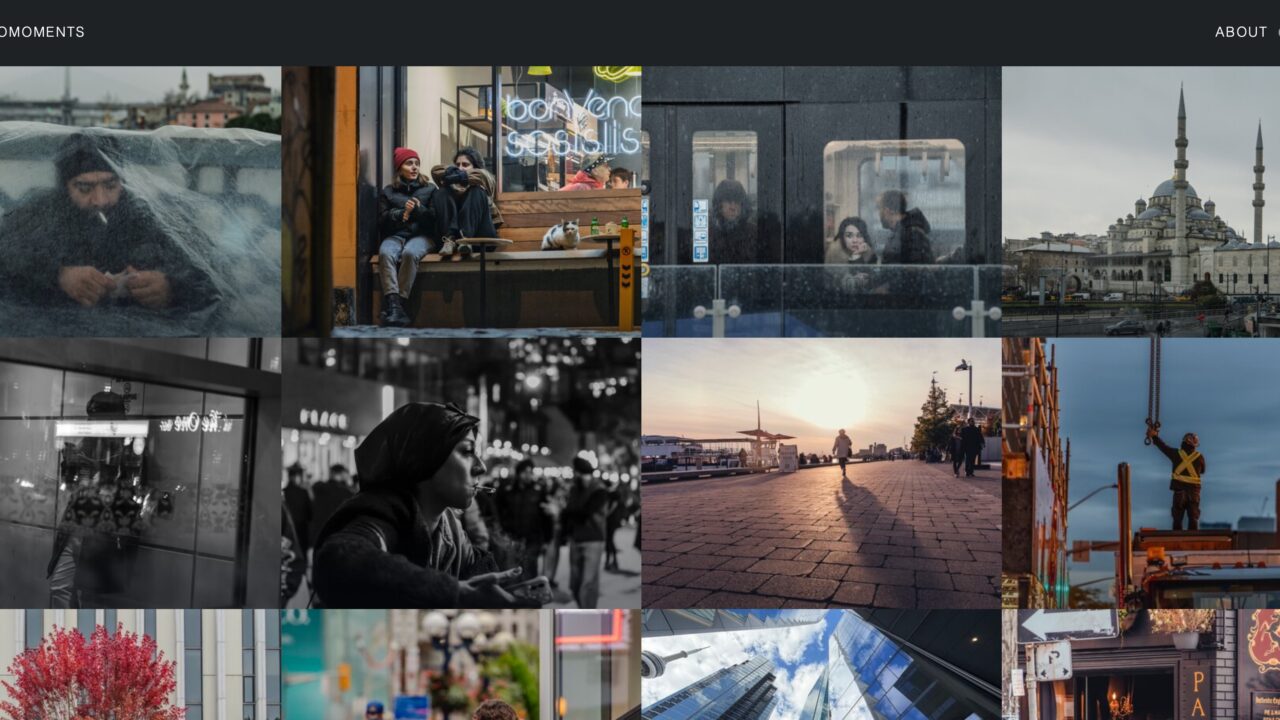
I’m an amateur photographer. In the past few years I’ve always wanted to have a simple and yet nice portfolio which turns out is not an easy wish! I tried, if I remember, two paid WordPress themes, Adobe Portfolio and some other random services. I didn’t like any of them. I was expecting to create something decent with WordPress, but hey it’s WordPress! This one particular theme, called “Photography” was using Elementor, it had a lot of features but the one thing that I cared about was not working, no matter what: I couldn’t sort the images! I had some options but none of them seemed to be working. Every time I uploaded a picture it was going to this 2024/08 (or something) folder and the new images would go to the bottom of the list and I had to manually drag them up to the top of the list and I have more than 250 pictures there.
A few days ago I decided to try again, look for another option, so I tried “open source photography portfolio”, then I came across this https://github.com/rampatra/photography repo and it was exactly what I liked, visually at least. It was kind of made to be used on GitHub Pages. This part, I am not a fan, I’d rather be in full control. If you don’t host your pictures on GitHub you can fork it, follow the instructions, connect your domain to the GitHub page and Bob’s your uncle! (I picked this up from my colleague).
The source code and instructions are available at https://github.com/maysamsh/photography-portfolio if you already know your ways around linux
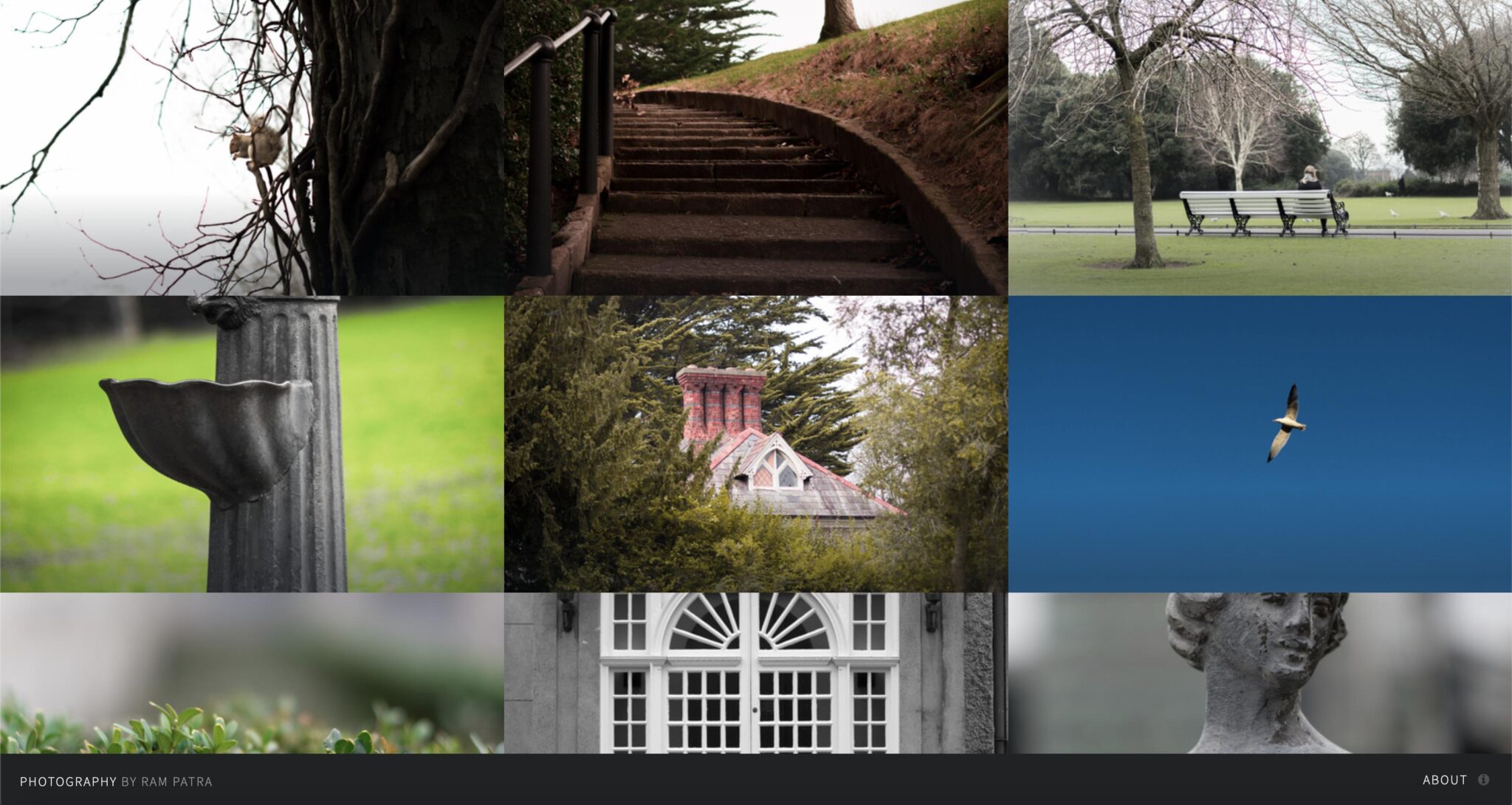
Although this project works just fine, it has some minor issues. First, it doesn’t have any sorting, the order of the pictures was random. Second, it has outdated dependencies. Third, almost everything is hardcoded for the needs of its creator (not really a problem but still). So I downloaded the source code and made some changes to address all these problems, or things that I didn’t like.
Here is the modified version of the website https://chronomoments.com, you can take a look and see if you like it, if not, close the tab and go on with your day!
If you decide to give it a go, you’d need a VPS (I’m using DigitalOcean) and a domain (I bought it directly from Cloudflare). If you already know your way around linux, you can simply go to the repo and follow the instructions to set it up and running, it’d take less than 15 minutes. But if you are not, I have a step by step guide here to get you through the steps.
1) First you need a VPS, which stands for Virtual Private Server, to host your files on the internet so they are available at all times and everywhere. There are dozens of providers that you can use, more or less in the same price range. I’ve been using DigitalOcean for almost a decade now, so I decided to use them for this tutorial. If you want to go with them, go ahead and create an account there and create a Droplet, select “Debian”, shared CPU and regular SSD, because our website does not need a lot of processing power. Debian is a popular linux distribution with a strong and large community. With DigitalOcean they call a new server a Droplet, so you can select Droplets from the sidebar menu and create a new one:
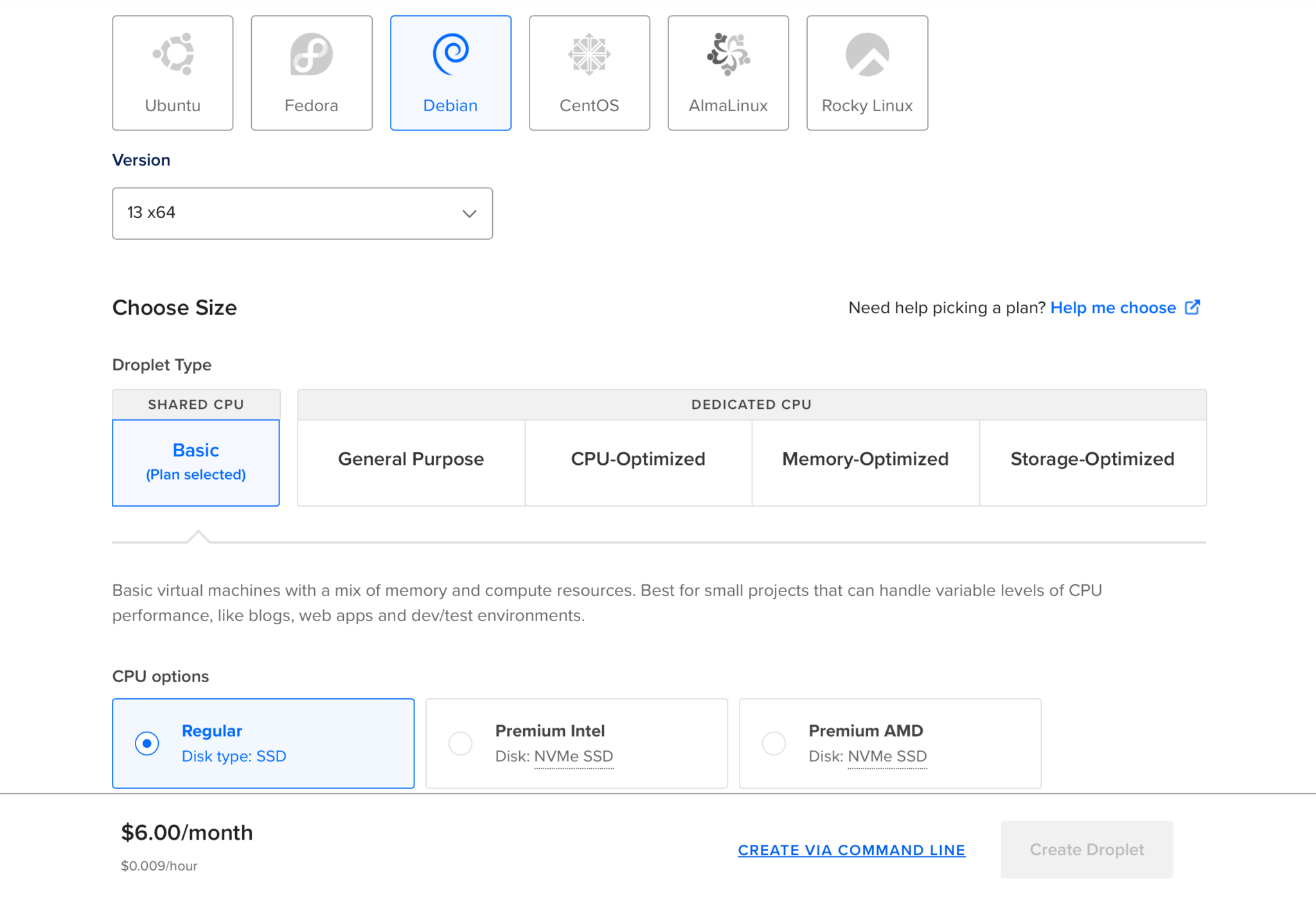
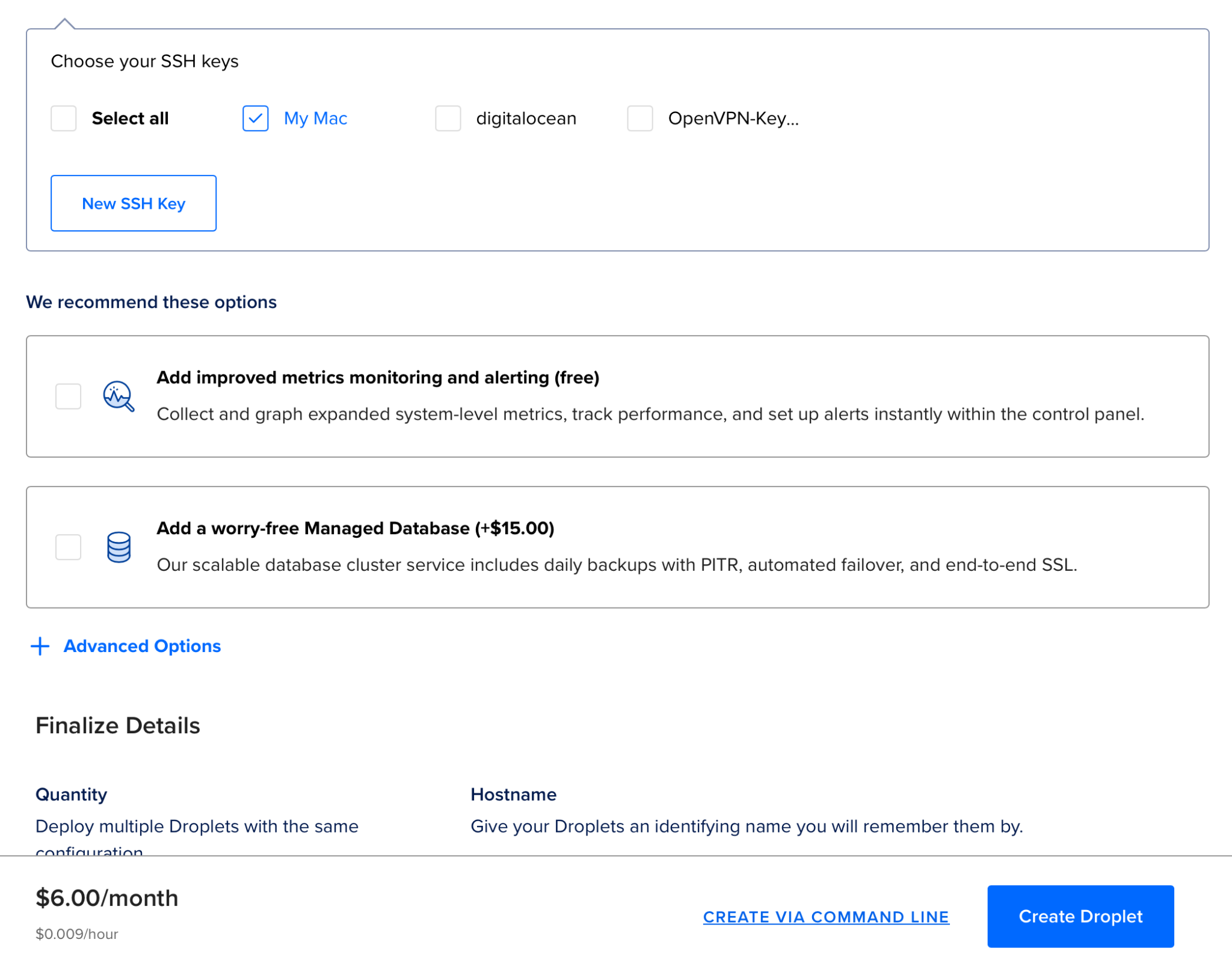
This is the cheapest one at the time of writing this tutorial, US$6/month.
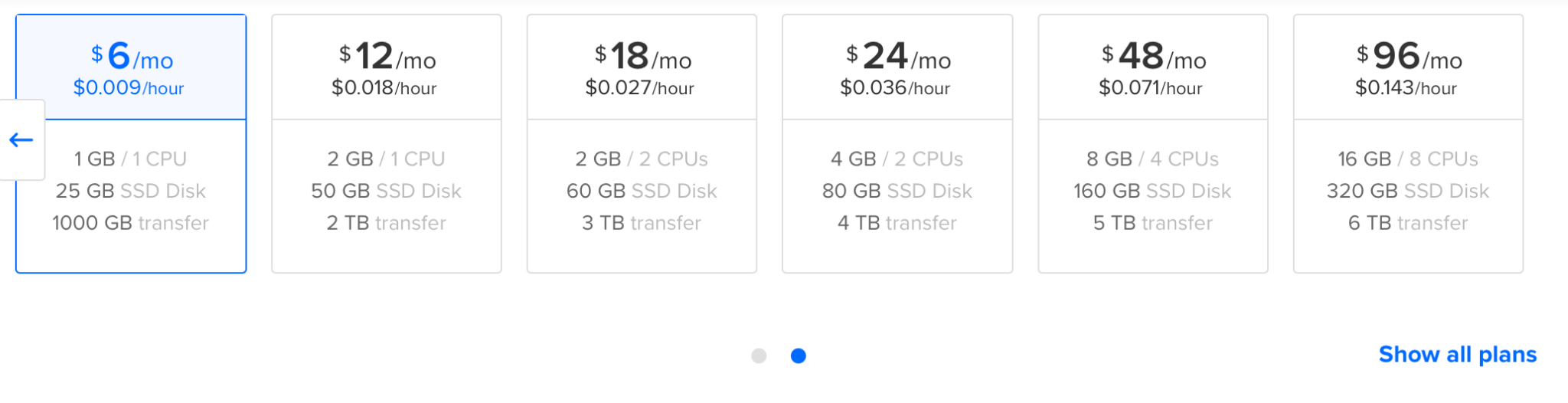
2) Once you’ve selected your plan you need to choose the authentication method you want to use to connect to it, DigitalOcean lets you choose a root password or use your SSH key to connect to the server.
If you don’t know what an SSH key is: An SSH key is an access credential in the SSH protocol. Its function is similar to that of user names and passwords, but the keys are primarily used for automated processes and for implementing single sign-on by system administrators and power users. — ssh.key
If you choose to use the password, you’d need to enter the password every time you connect to your server.
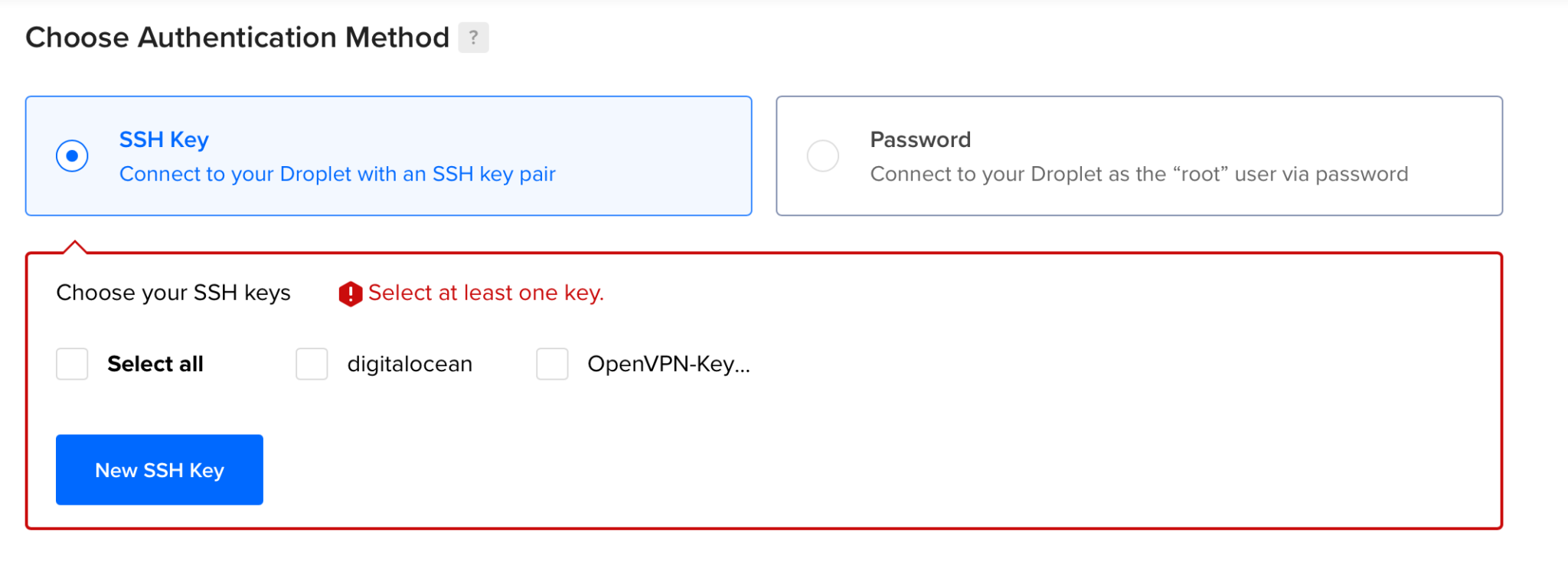
3) I assume you are using macOS, and it comes with built-in ssh, but you need to create a key, if you haven’t already. To do so, open a Terminal window and type in:
On macOS: In the Finder, open the /Applications/Utilities folder, then double-click Terminal.
On Windows: Open the Start menu, type Windows PowerShell, select Windows PowerShell, then select Open.
If you have already done this, you can skip it. To see if that file already exist in your computer, you can try:
cat ~/.ssh/id_rsa.pubIf it says file not found, you can proceed with the next step and generate one, if not, skip it.
ssh-keygen -b 4096 -t rsa When you run this, it will ask for a file name while offering a default name, id_rsa, you can press the return key to use that name, and then it will ask for a passphrase, you can leave it empty and press return again. But if you enter a passphrase, you’d need to enter it every time you use the key; I’d personally leave it empty. To know more about it you can check out https://man.openbsd.org/ssh-keygen.1
4) To copy your key type in this command, you can just copy-paste it:
This will copy your key to the clipboard and you can paste it into the box:
cat ~/.ssh/id_rsa.pub | pbcopy5) Select “New SSH Key” then paste your code (press Command+V) in the big box, and give it a name.
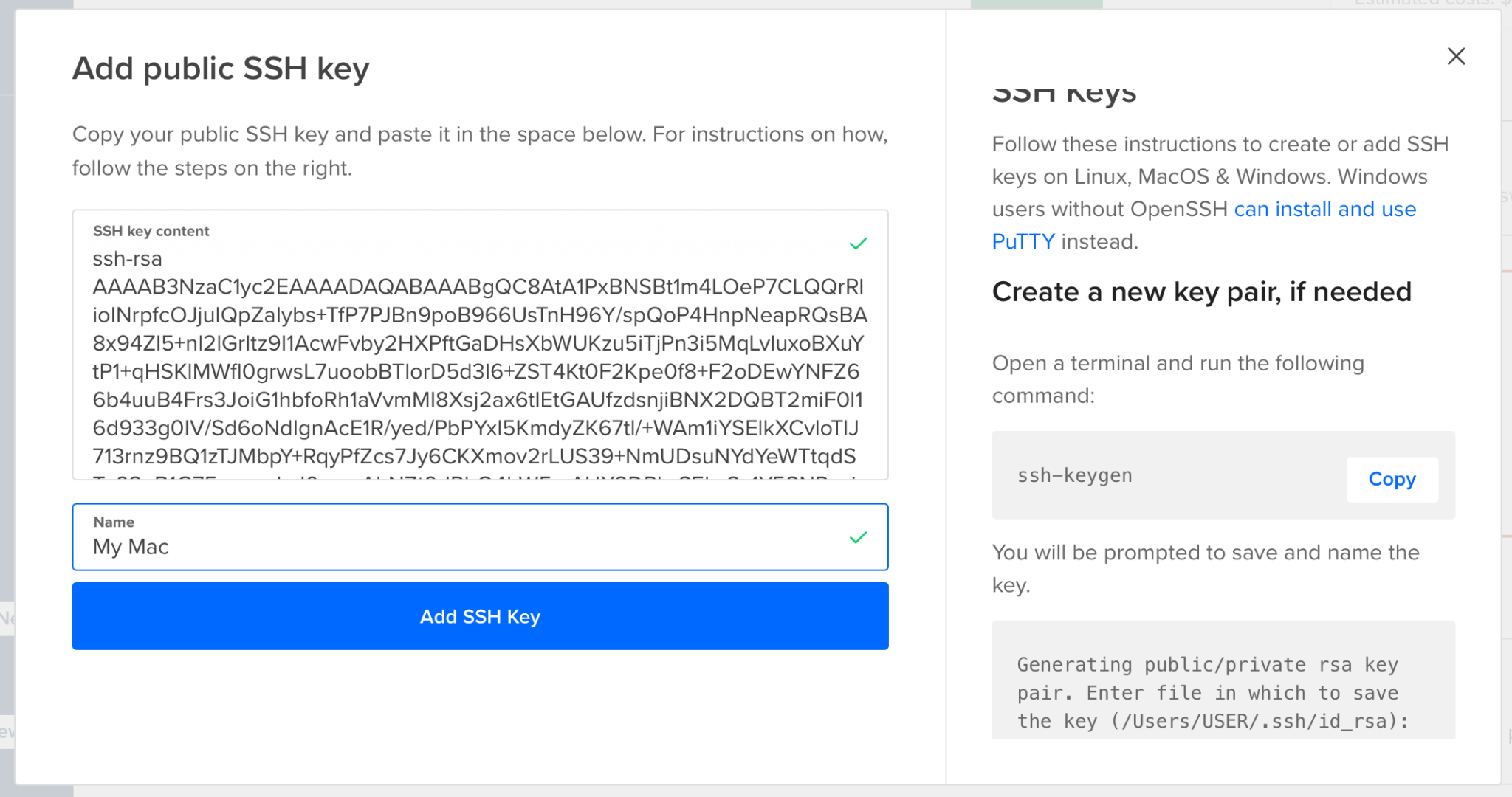
Click “Add SSH Key”, now you can select the name you gave it in the previous step and click “Create Droplet”.
It takes a few seconds to build the droplet, once it’s done you can find it under Droplets, with “Happy coding!”
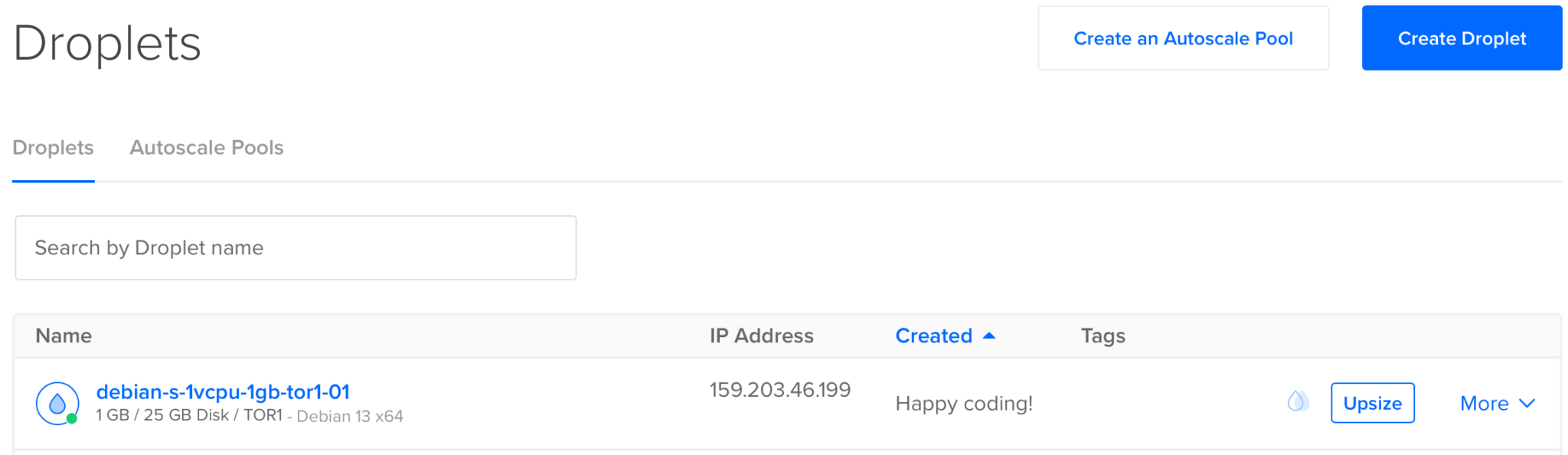
6) Now all you need is to copy the IP address and go back to the Terminal window. In the terminal type in:
ssh [email protected]The format of this command is ssh user @ server. In our case the only user we have right now is called root.
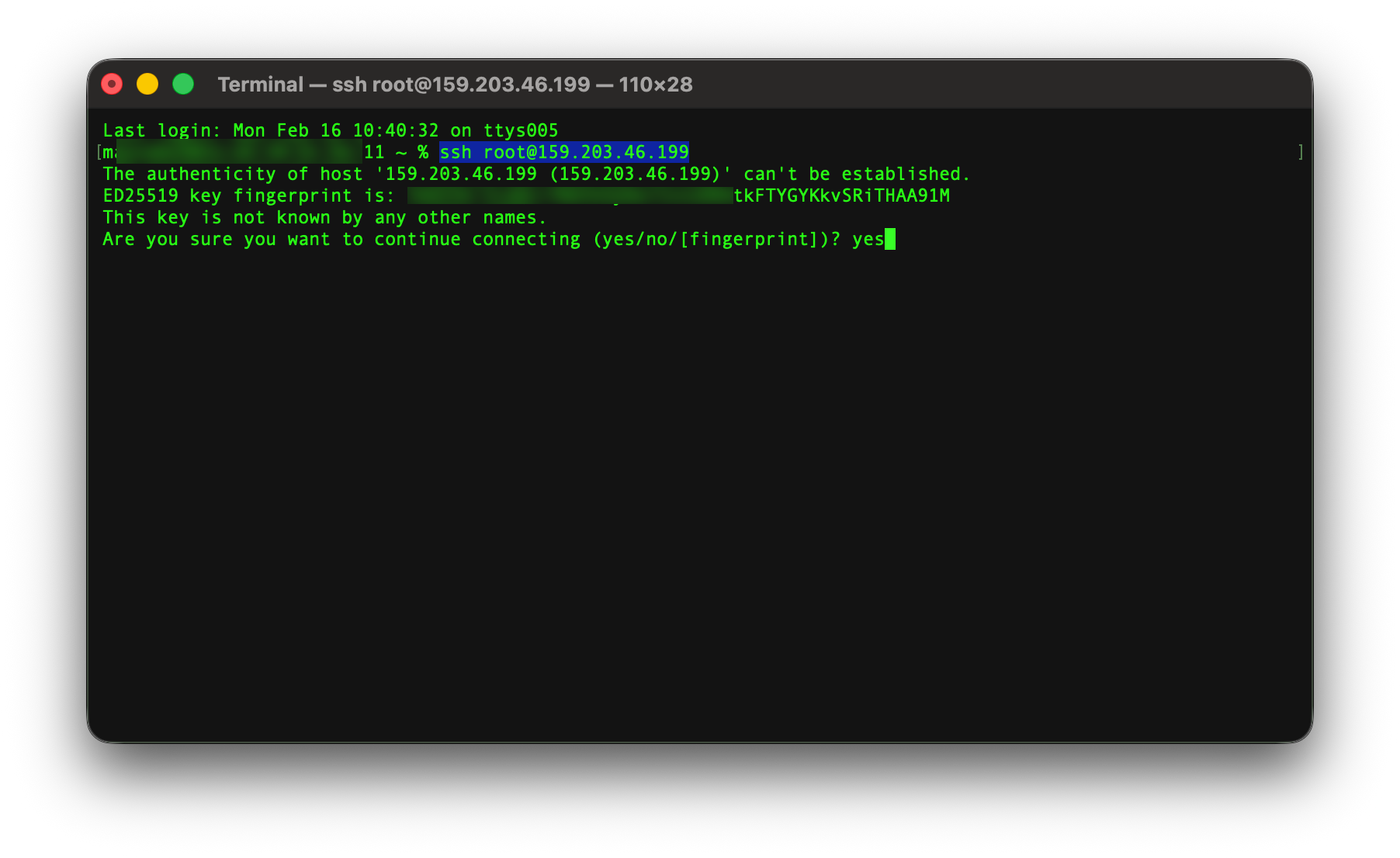
Replace 159.203.46.199 with the actual IP address of your droplet. And respond yes to the question about adding the fingerprint to your known hosts:
7) Once you’ve logged in, you need to create another user to do all the work, because it’s not a good idea to use the root user to install any of the things we need to install. In the Terminal window type in adduser your_desired_user_name (mine is my name!):
adduser maysam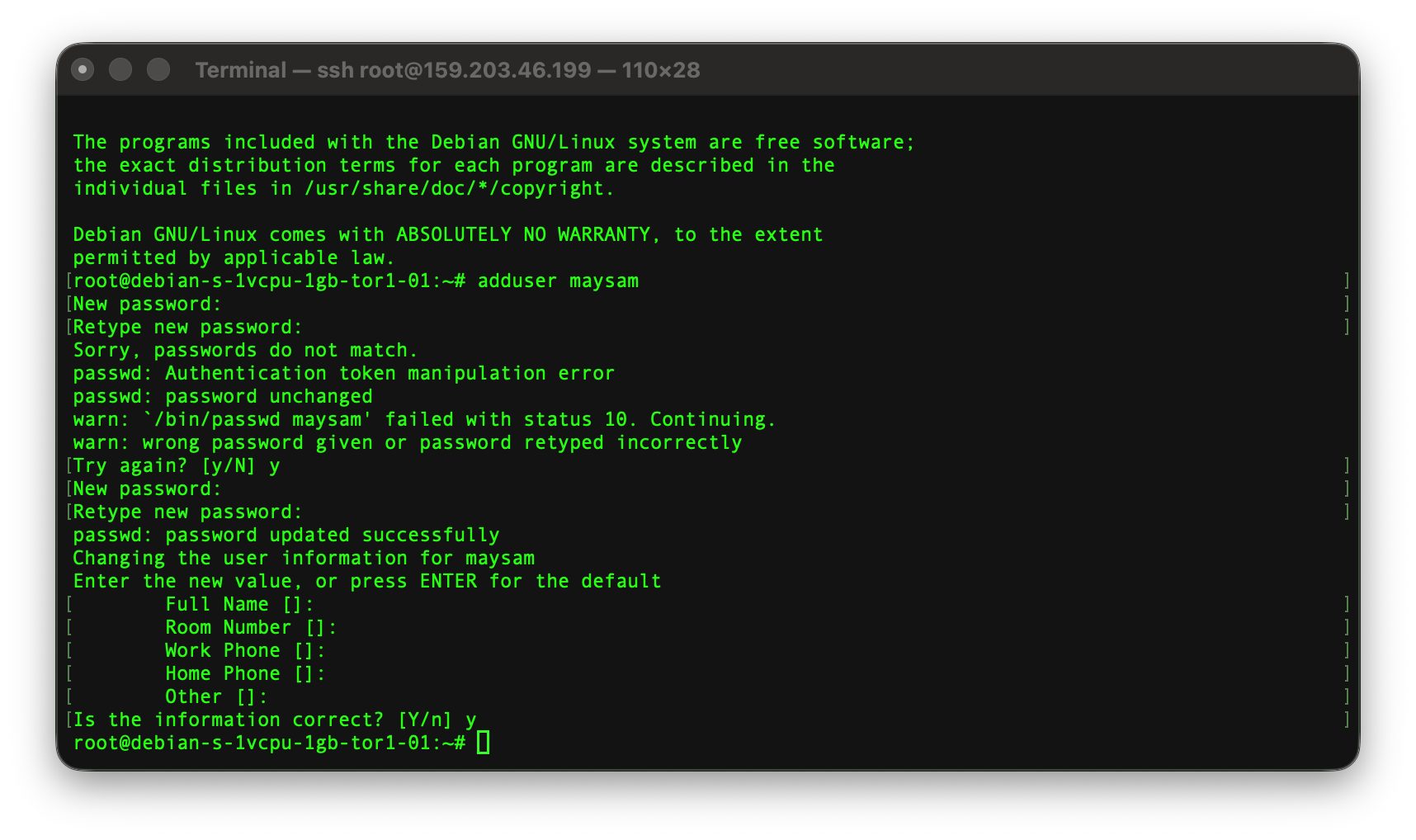
When you add a new user, it asks you to enter a password, but won’t show the characters when you are typing them, it feels a bit weird! But that’s how it works. After entering password and re-typing it, it asks about your personal information, I always leave them blank. In the last step it asks you to confirm your information by typing “y”. From now on, wherever I use my name, maysam, you should replace it with the username you picked, unless we have the same name!
And then you need to tell the system that this new user should have admin access.
usermod -aG sudo maysamThere are two little things you need to do before logging in with the new user and that’s adding your ssh key for the newly created user.
mkdir -p /home/maysam/.ssh
chmod 700 /home/maysam/.ssh
cp /root/.ssh/authorized_keys /home/maysam/.ssh/
chown -R maysam:maysam /home/maysam/.ssh
chmod 600 /home/maysam/.ssh/authorized_keys
Here we created the .ssh folder, copied the existing authorized_keys file to the new folder, which will be used by the new user, and set the right permissions for the folder and the file, so you won’t need to enter your password when you log in, but you’ll need it when you install new packages.
The other thing is disabling the root access to the ssh for security reasons. There are lots of bots out there trying to gain access to the servers. All you need to do is modifying SSH daemon config file which is located at /etc/ssh/sshd_config. You could use nano, a command line editing tool, or vim. I’m a nano guy.
nano /etc/ssh/sshd_configIn this file there are two values you need to check and change, PermitRootLogin and PasswordAuthentication should be set to no. To find them you can press Ctrl+W and type their names. After doing this, press Ctrl+X and type “y” when asked “Save modified buffer?” then keep the name as it is and press return.
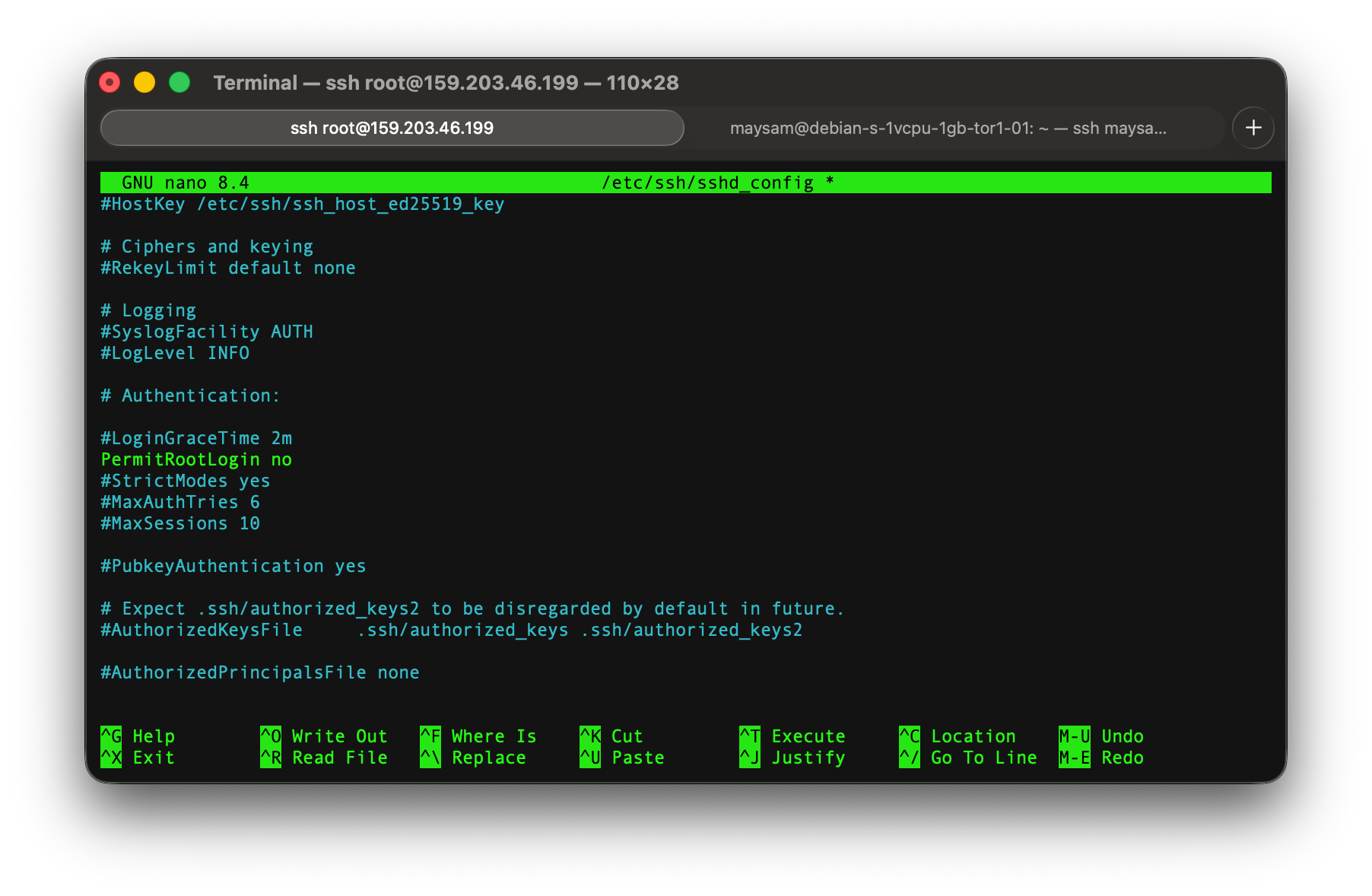
PermitRootLogin to no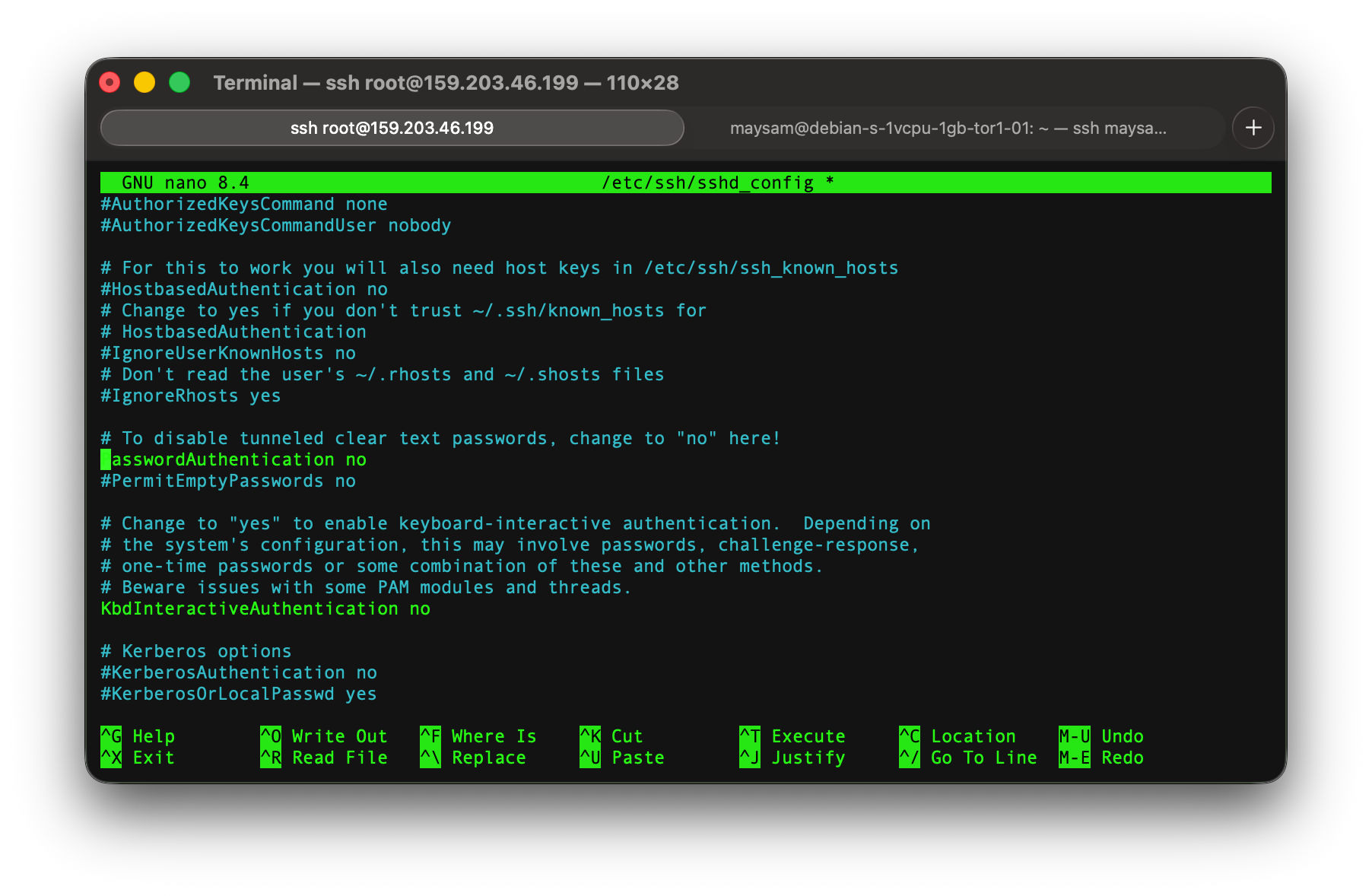
PasswordAuthentication to no, it might be set to no already. Now if you log out (or exit) and try to login again with the root user, you won’t be granted access:
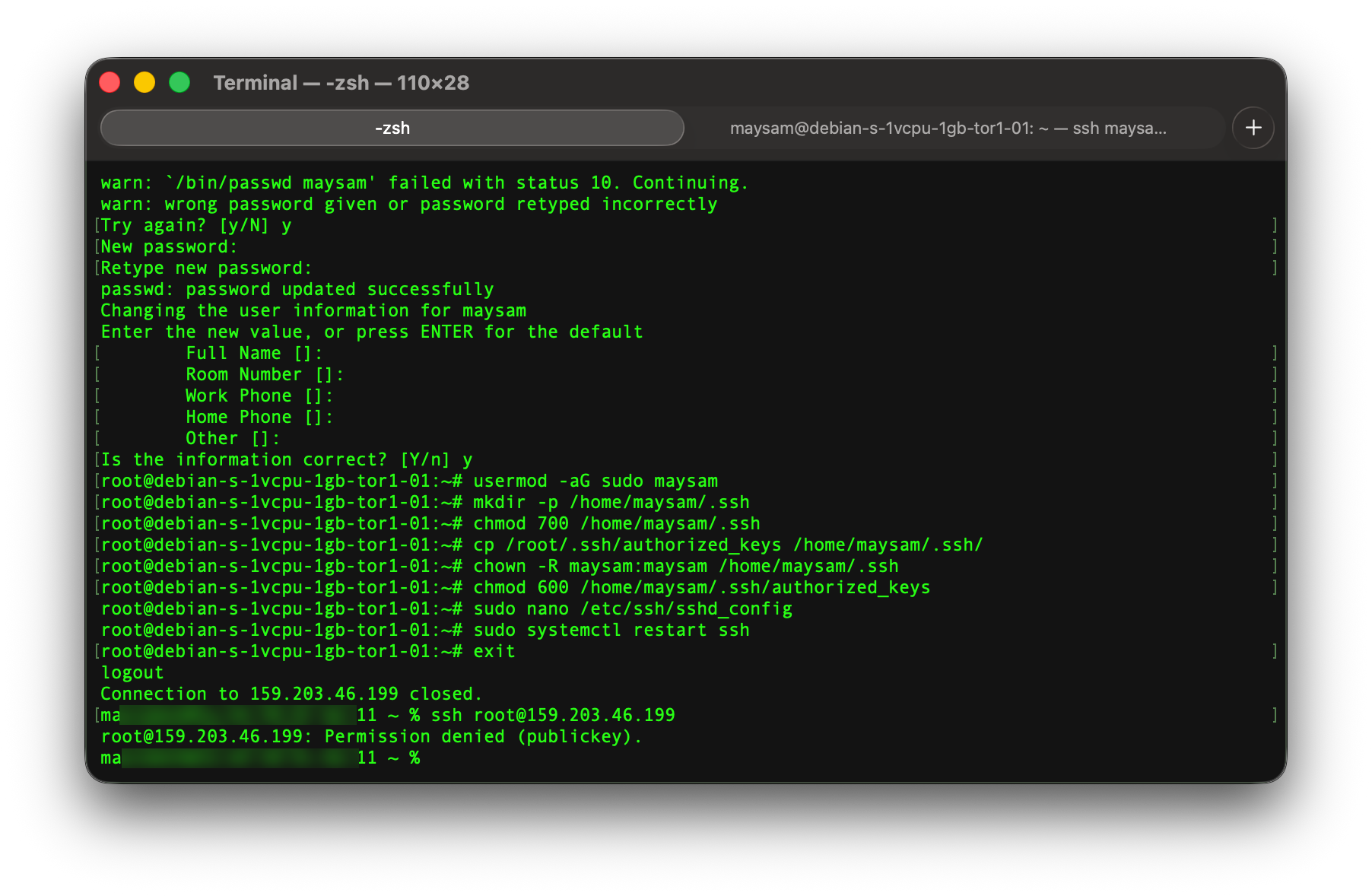
8) Now you can try the new user. To do so, you can end the current session by typing exit in the Terminal window and login again with the new user.
ssh [email protected]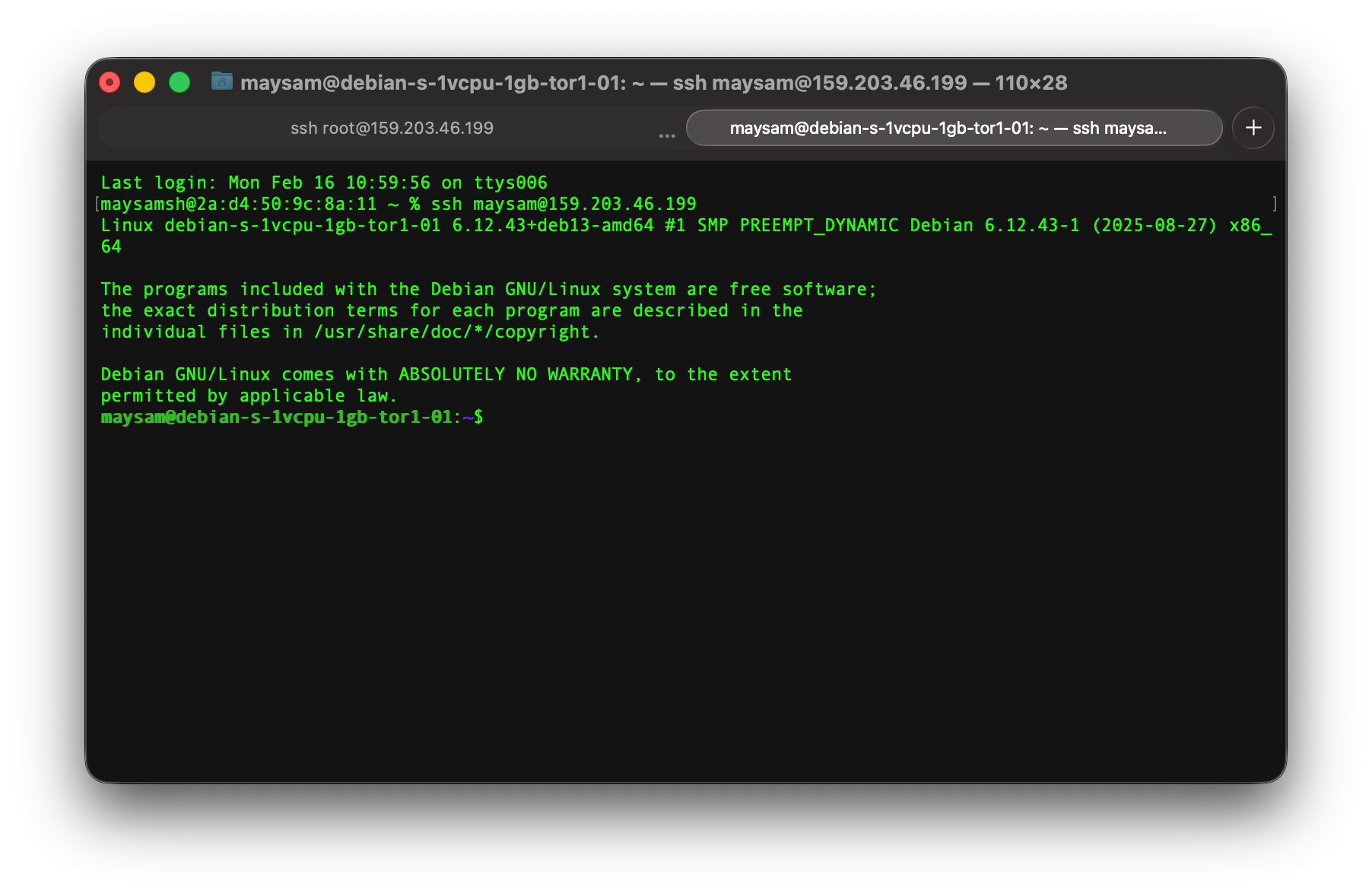
9) Now it’s time to install the required packages, which includes essential Debian packages, curl, GitHub CLI, Ruby, and NPM. Start with updating the server’s repository and the essential packages. Both of these commands begin with sudo which means you need to enter your password when prompted.
sudo apt update && sudo apt upgrade -y
sudo apt install -y build-essential curl imagemagick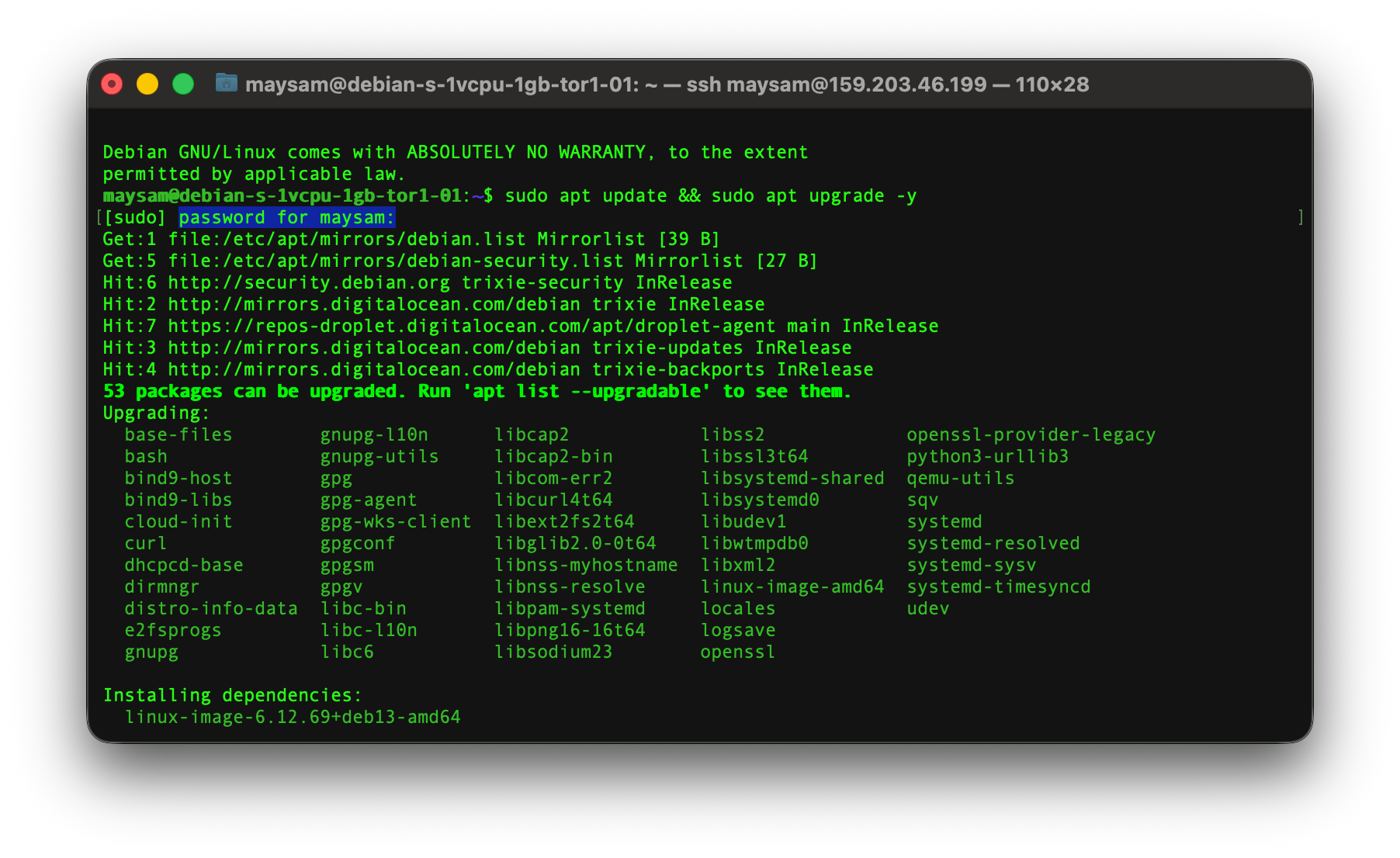
At each step of the way you need to make sure the command was successful. If you see any errors or warning, you need to fix it before proceeding to the next step. I am trying to cover as much as possible, but if anything is missing, Google / ChatGPT are your friends!
10) Installing GitHub CLI is the next step, because first, the code is hosted there, second, it’s much easier to authenticate via their own tool than generating a token and using it here.
type -p curl >/dev/null || sudo apt install -y curl
curl -fsSL https://cli.github.com/packages/githubcli-archive-keyring.gpg | sudo dd of=/usr/share/keyrings/githubcli-archive-keyring.gpg
sudo chmod go+r /usr/share/keyrings/githubcli-archive-keyring.gpg
echo "deb [arch=$(dpkg --print-architecture) signed-by=/usr/share/keyrings/githubcli-archive-keyring.gpg] https://cli.github.com/packages stable main" | sudo tee /etc/apt/sources.list.d/github-cli.list > /dev/null
sudo apt update
sudo apt install -y gh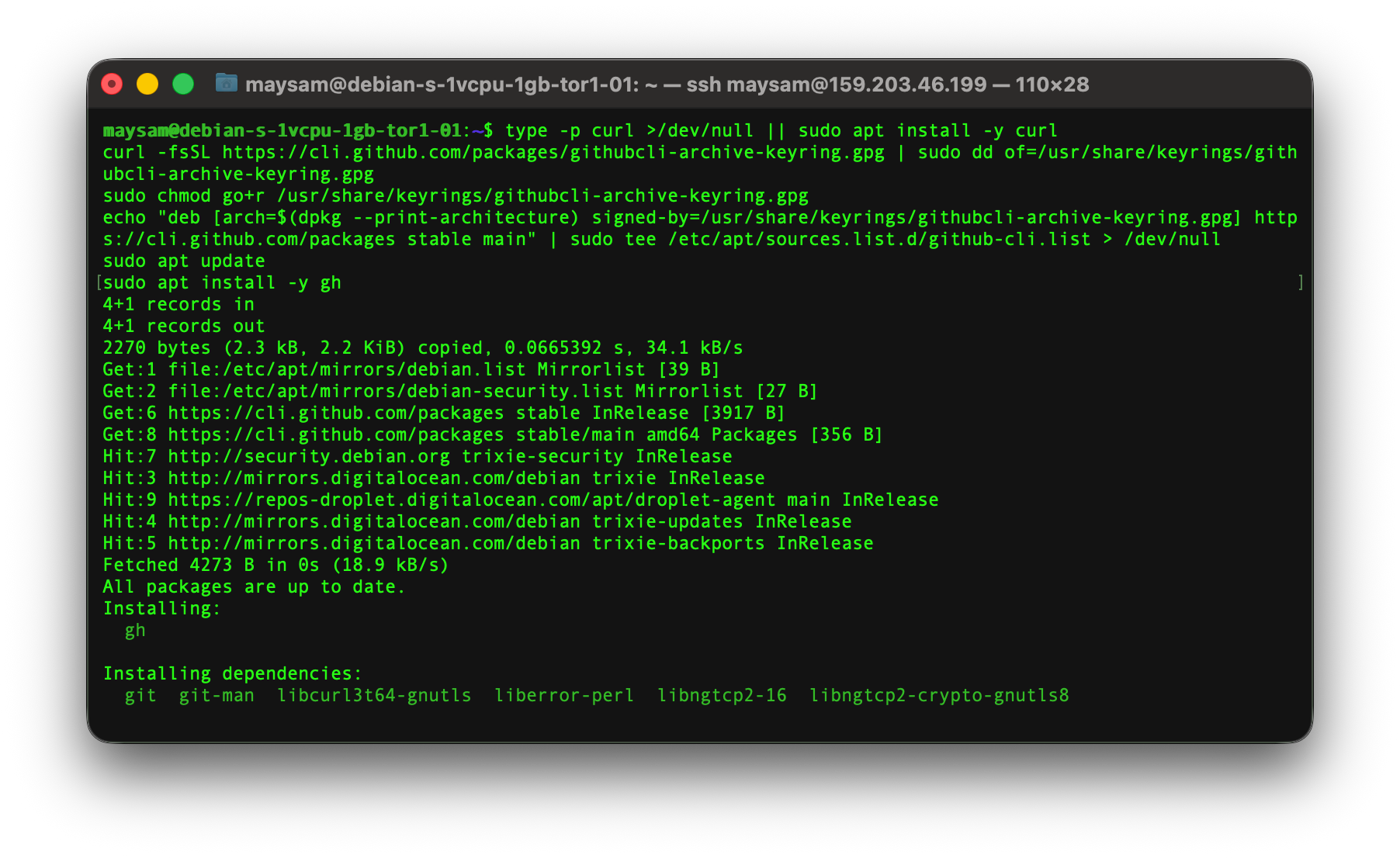
11) Now we need to install Ruby which is required by our static site generator, Jekyll. Languages like Ruby come in different versions and you could have multiple versions of it on your machine, but the tools which use them usually depend on a specific version. To make our lives easier, there are other tools that create a virtual environment to make sure your project is using the right version of the language, here we are going to do that instead of relying on a system-wide installation.
curl -fsSL https://github.com/rbenv/rbenv-installer/raw/HEAD/bin/rbenv-installer | bash
echo 'export PATH="$HOME/.rbenv/bin:$PATH"' >> ~/.bashrc
echo 'eval "$(rbenv init -)"' >> ~/.bashrc
source ~/.bashrc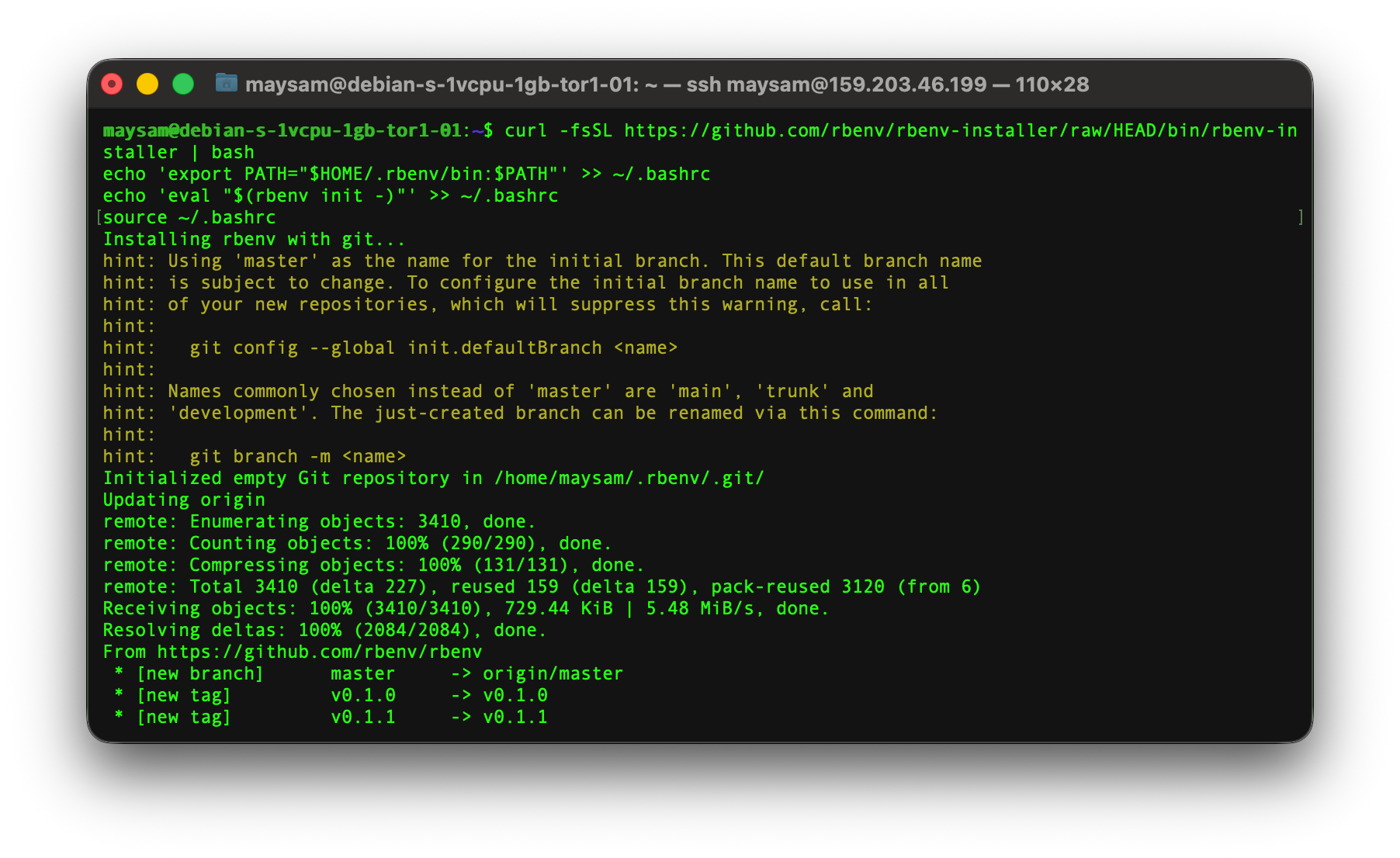
Ruby 4 dependencies:
sudo apt install -y libssl-dev libreadline-dev zlib1g-dev libyaml-dev libffi-dev libgmp-dev autoconfHere you will be asked to enter your password, the one you associated to your new username. You won’t see it when you are typing it, but it will work as long as you enter the correct password. Now we can install Ruby v4.0.1 and declare it as the default version.
rbenv install 4.0.1
rbenv global 4.0.1
With these two commands you install that specific version of Ruby and set it as the global version for the machine, if later you need a different version for a different project, you could run rbenv local [version] and that version will be used for that project, after installing it of course.
Now the last one in this step is installing another tool called bundler. This tool, bundler, manages Ruby gems (programs).
There is a little caveat when you install bundler on machines with scarce resources (RAM in our case). It might fail, because during the installation a lot of files are duplicated and inside system provided temporary folder which is bound to RAM and we have a cheap server with a small RAM. But it’s not a big deal, all we need to do is tell the system not to use that small but fast one, and use the one we create on the storage which is slower but it’s a one time thing.
mkdir -p $HOME/tmp
export TMPDIR=$HOME/tmp
Now we can proceed with the installation process.
gem install bundler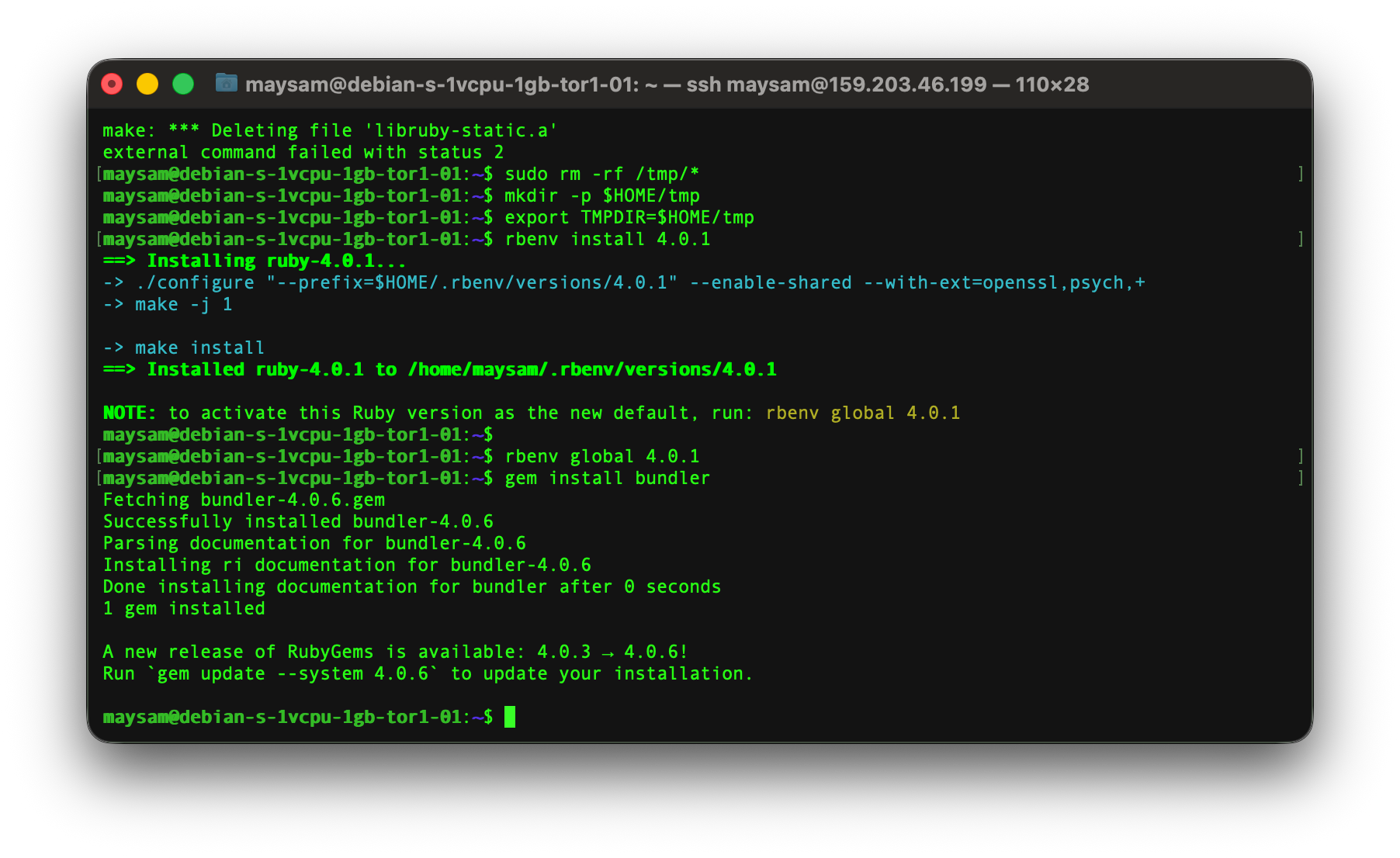
12) There is another set of tools that we need to install in order to run the site generator, NodeJS.
curl -o- https://raw.githubusercontent.com/nvm-sh/nvm/v0.39.7/install.sh | bash
source ~/.bashrc
nvm install --lts
nvm use --lts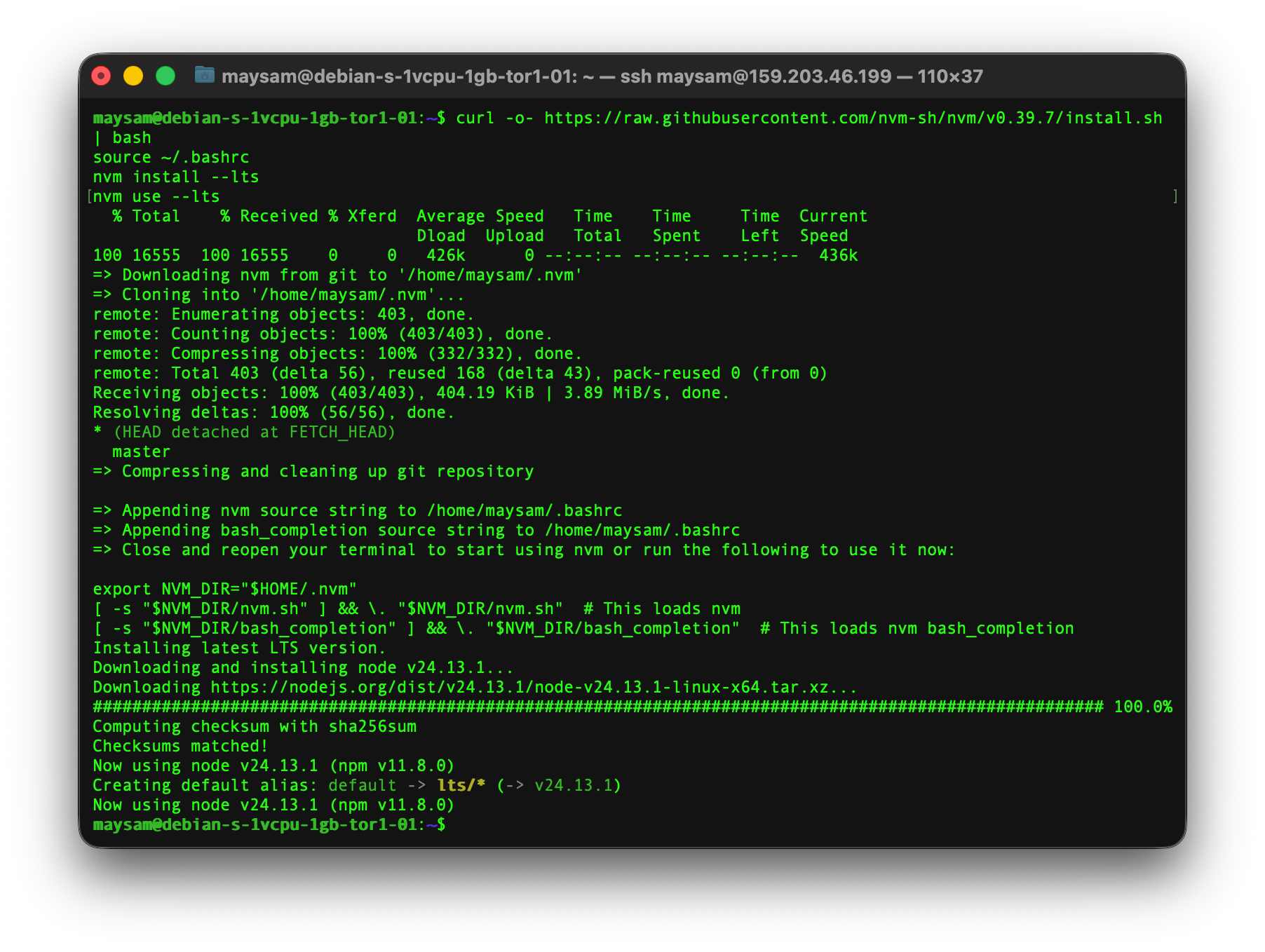
13) Now we are almost there, you need to create an account on GitHub.com because the source code is hosted there. Please create an account and come back. In the Terminal window we need to authenticate with GitHub:
gh auth login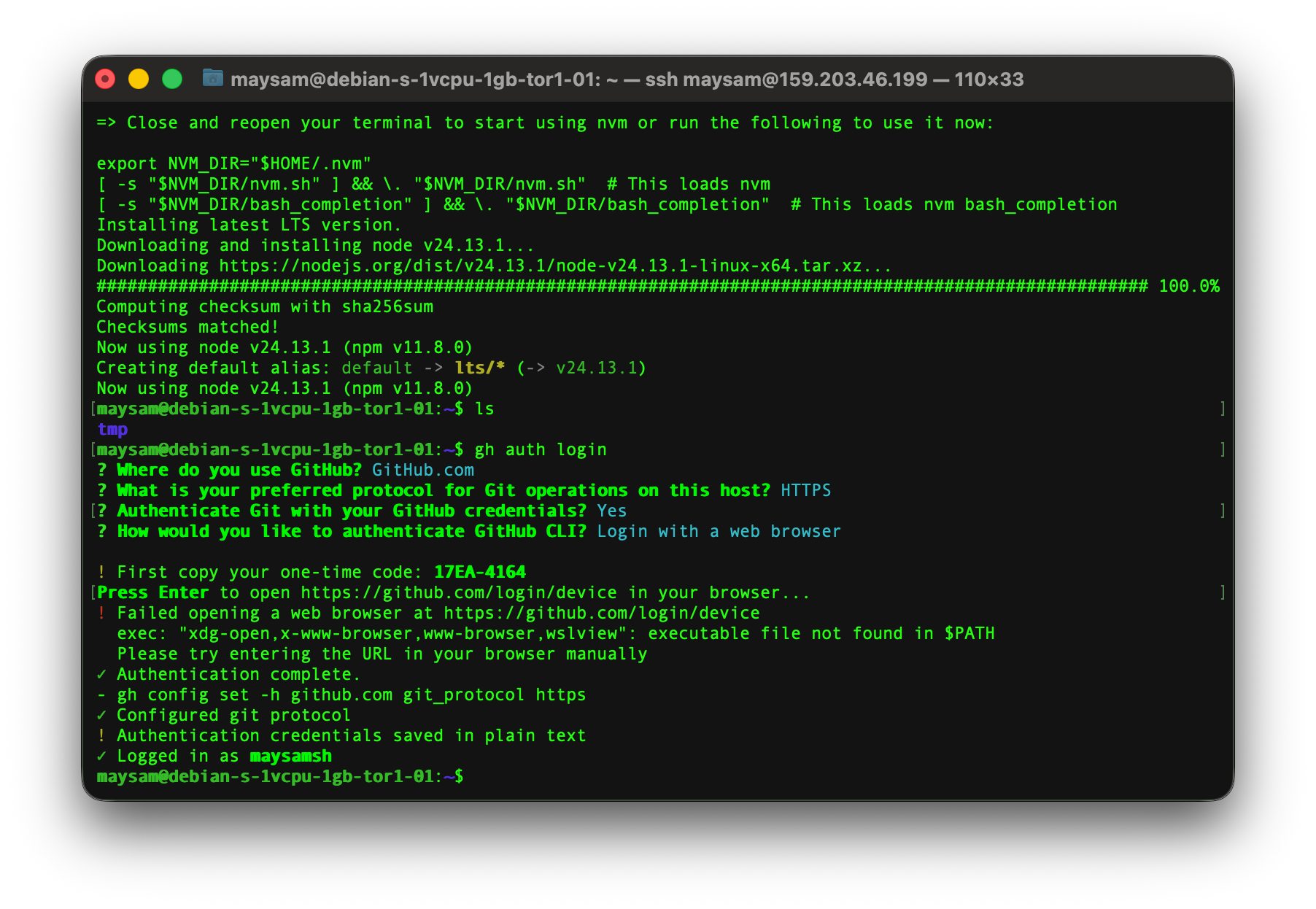
It will ask a couple of questions, you can pick the answers based on the screenshot. What it does is giving you a code, asking you paste this code on GitHub so it can authenticate you. Once you do it, you will see a message like in the image: Logged in as maysamsh
14) Let’s clone (copy) the source code to our server.
gh repo clone maysamsh/photography-portfolio
cd photography-portfolio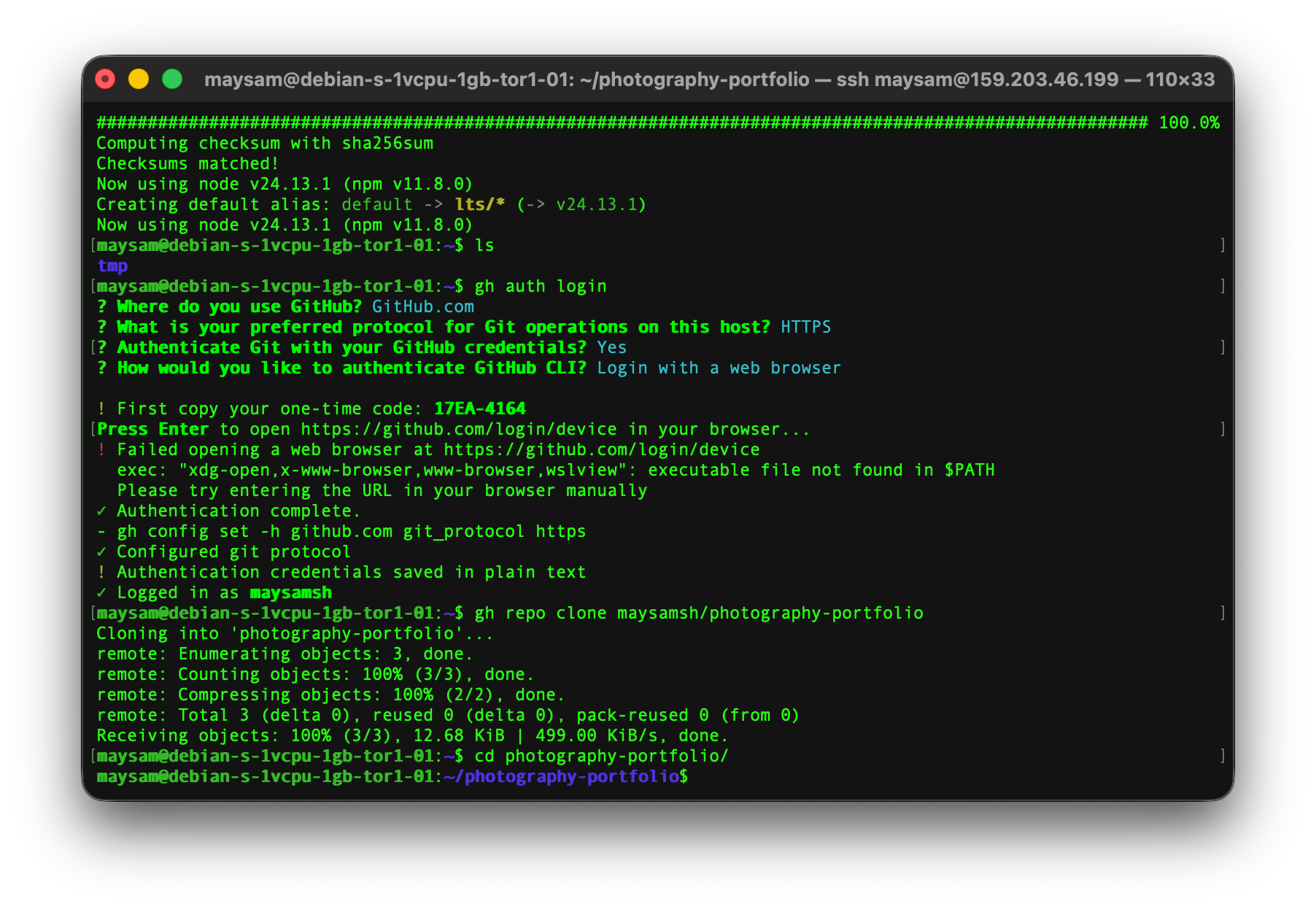
15) Installing project dependencies
bundle config set --local path 'vendor/bundle'
bundle install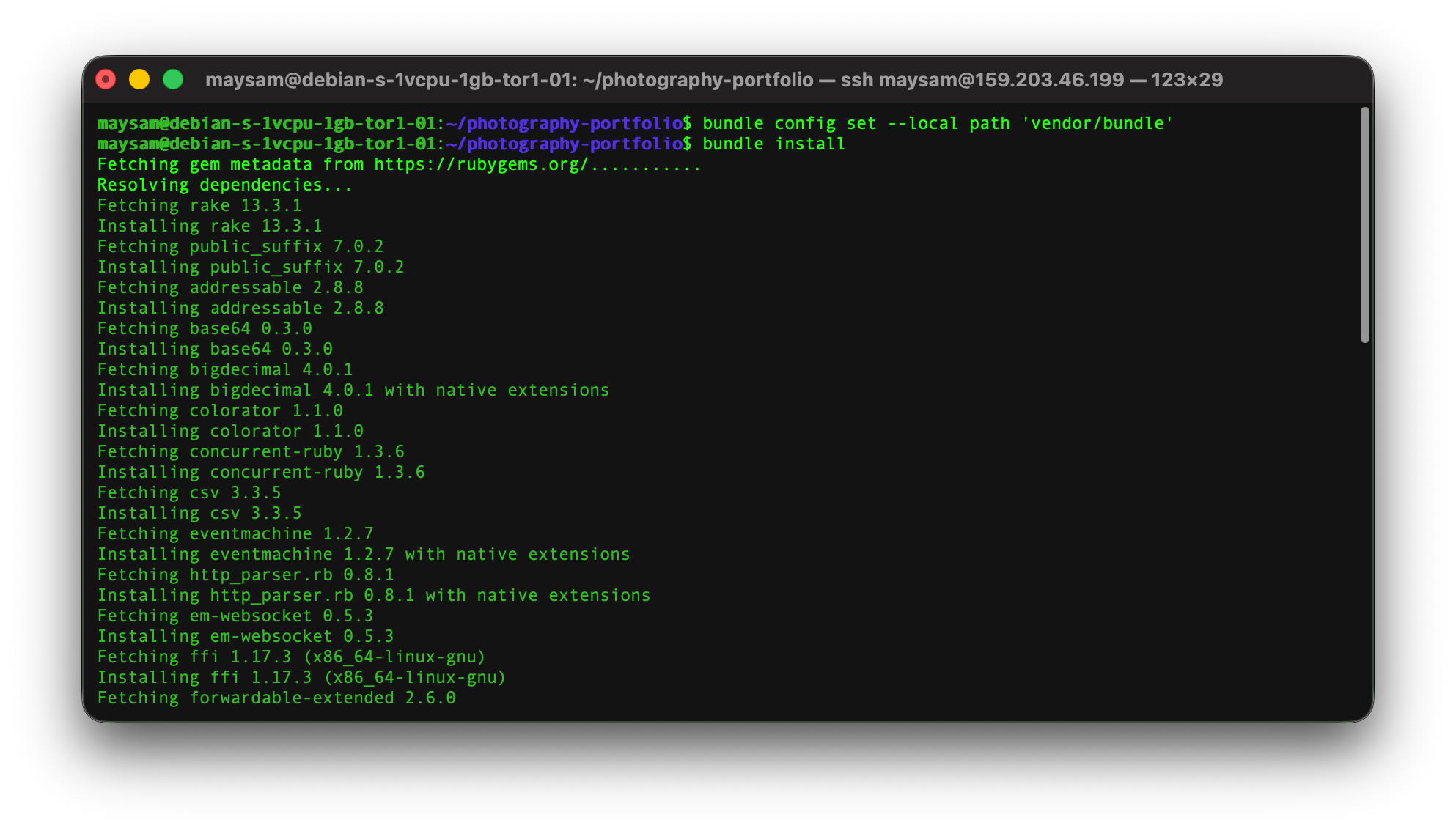
npm install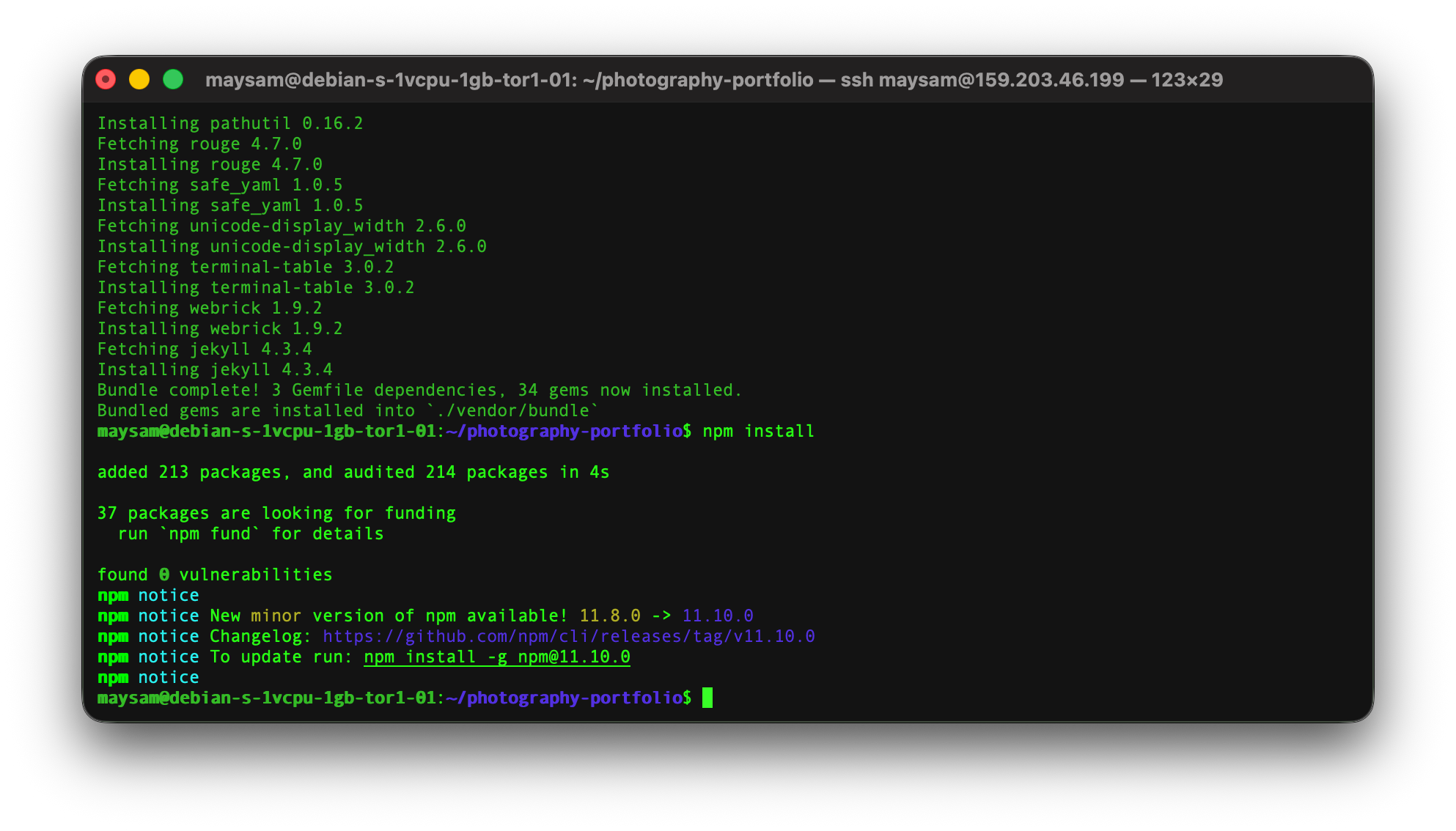
16) At this point your setup is ready to generate your website and publish it. But first you’d need to configure the looks of the site to your liking. I’ve extracted as much as possible hardcoded information from the original setup and made them configurable through a YAML (Yet Another Markup Language) file. Once you clone the project you will find a _config.yml file, all the settings are there. At the time of writing this article, it looks like this:
# Exclude dev/build files from _site (extends Jekyll defaults)
exclude:
  - Gemfile
  - Gemfile.lock
  - node_modules
  - vendor/
  - package.json
  - package-lock.json
  - gulpfile.mjs
  - npmfile.js
  - nginx.conf.example
  - "*.sh"
  - "*.py"
  - resize-images.js
  - scripts
  - CNAME
  - README.md
  - LICENSE

# Base configs
# baseurl: path prefix when the site is served from a subdirectory (not the root).
#   Use "" when the site lives at the root (e.g. chronomoments.com).
#   Use "/my-project" when the site lives at a subpath (e.g. example.com/my-project).
#   Example: GitHub project pages use baseurl: "/repo-name" for username.github.io/repo-name
baseurl: ""
url: "https://chronomoments.com"
image_full_loc: "/images/full"
image_thumbs_loc: "/images/thumbs"
image_sort_by: "name"      # "name" or "date" (date = file modification time)
image_sort_order: "descending"  # "ascending" or "descending"
google_analytics: ""

# Theme (colors & fonts) - customize the UI appearance
# Omit any key to keep the default. Re-run build (gulp sass or npm run build) after changes.
# Note: Uses "custom_theme" to avoid conflicting with Jekyll's reserved "theme" (gem-based themes).
custom_theme:
  # Font family for body text (CSS font stack). Use quotes for font names with spaces.
  font_family: "'Source Sans Pro', Helvetica, sans-serif"
  # Fixed-width font for code blocks
  font_family_fixed: "'Courier New', monospace"
  # Google Fonts URL - load the font(s) matching font_family. Set empty to skip.
  font_google_url: "https://fonts.googleapis.com/css2?family=Source+Sans+3:ital,wght@0,300;0,400;1,300;1,400&display=swap"
  # Color palette (hex values)
  colors:
    background: "#242629"             # Main page background
    background_secondary: "#1f2224"   # Header, panels
    text: "#a0a0a1"                   # Body text
    text_heading: "#ffffff"            # Headings, bold text
    text_muted: "#707071"             # Secondary text
    text_subtle: "#505051"             # Hints, labels
    border: "#36383c"                 # Borders and dividers
    field_background: "#34363b"        # Form inputs, code blocks
    field_background_highlight: "#44464b"  # Inputs when hovered/focused
    accent: "#34a58e"                 # Links, buttons, highlights

# UI configs
title: "Chronomoments"
author: "Maysam"
header:
 title: "Chronomoments"
 show_about: true
 # Optional: single social link in header nav (omit or leave empty to hide)
 social:
   name: "Instagram"
   url: "https://instagram.com/maysamsh"
   icon: "icon brands fa-instagram"

footer:
  name: "Chronomoments"
  description: "A slice of time"  # Optional: shown below the name if set
  contact_email: "[email protected]"  # Recipient for mailto link

# Social media metadata
description: "A photography portfolio showcasing moments in time"

socials:
  - name: "Instagram"
    url: "https://instagram.com/maysamsh"
    icon: "icon brands fa-instagram"
  - name: "GitHub"
    url: "https://github.com/maysamsh"
    icon: "icon brands fa-github"
  - name: "Twitter"
    url: "https://twitter.com/samsh1986"
    icon: "icon brands fa-twitter"
  # - name: "LinkedIn"
  #   url: "https://linkedin.com/"
  #   icon: "icon brands fa-linkedin"

# Configure which exif data to display
# Tag is the actual exif tag, icon is a fontawesome icon. Use JSON notation without line breaks
exif: '[{"tag": "Model", "icon": "fa fa-camera-retro"}, {"tag": "FNumber", "icon": "far fa-dot-circle"}, {"tag": "ExposureTime", "icon": "far fa-clock"}, {"tag": "ISOSpeedRatings", "icon": "fa fa-info-circle"}, {"tag": "DateTimeOriginal", "icon": "far fa-calendar"}]'
I believe by reading it you would have a pretty good idea about what each one of them do. But one thing you should know is indentation matters in YAML files. So make sure you only change the values, nothing else. Lines that begin with # are comments, so they don’t do anything. I explain the parts that I think might not be clear:
- image_sort_by: the value for this property tells how the images should be sorted, by name or by date, it’s set to name by default but if you want to change it to date, make sure it’s between double quotes, “date”.
- google_analytics: If you are using Google Analytics, you can put your tag here, it will be setup for you.
- show_about: If set to true, it will show the “About” button on the navigation bar, set it to false if you don’t want that button.
- footer: You can easily spot what goes where under footer.
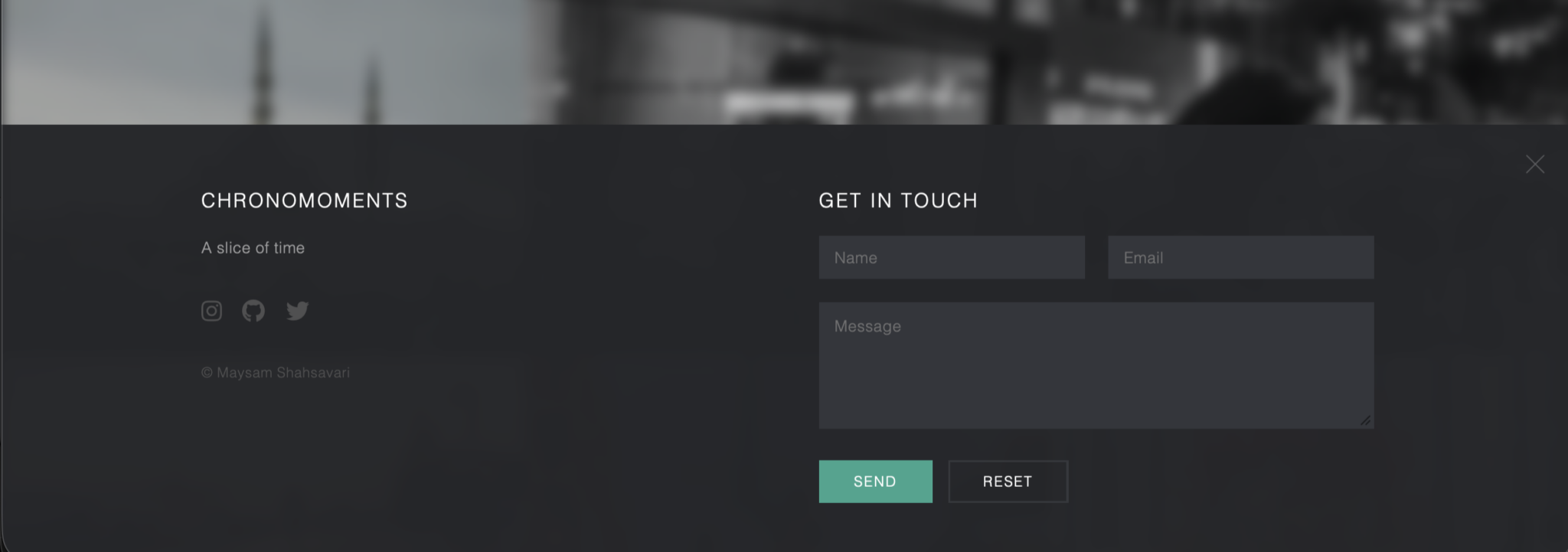
- socials: you can put as many social networks as you want, as long as you follow the format, each social should have a name, url and an icon. Also note that the name has a dash prefix which tells the parser it begins there and goes until the next dash. You might wonder what’s that text for icon, it comes from a project called Font Awesome (v5), you can go to their website and see all the icons they have there, but you only would need to change the last part, so for twitter (f* X) it’s “fa-twitter”. You can go there and search for whatever icon you’d like to put there. For example, if you want LinkedIn, you can uncomment those three lines by removing “#” from each line, but make sure they have the same indentation.
You might ask how to edit this file, it’s on the server; well you have 3 options, using a command line editor like nano:
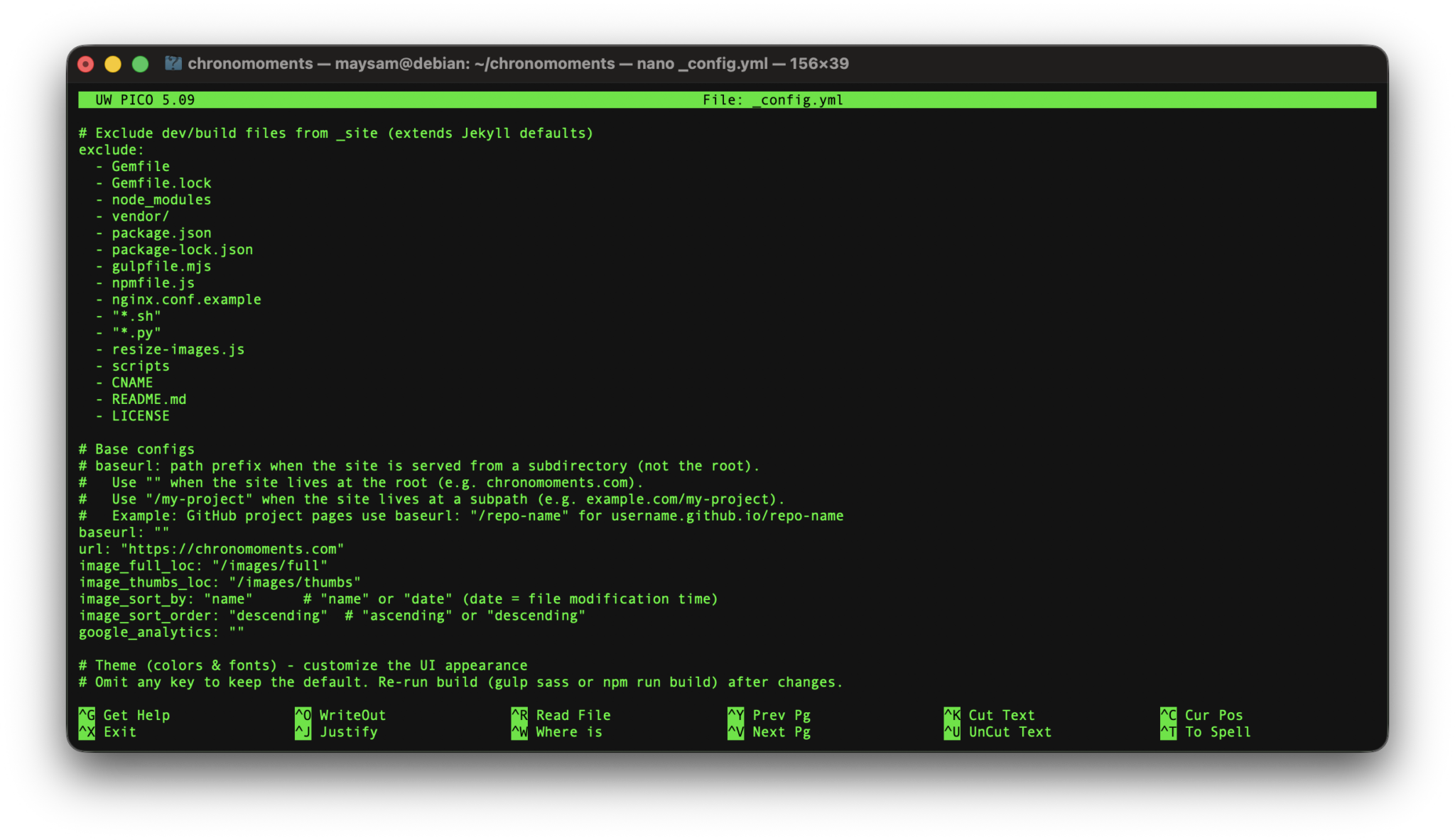
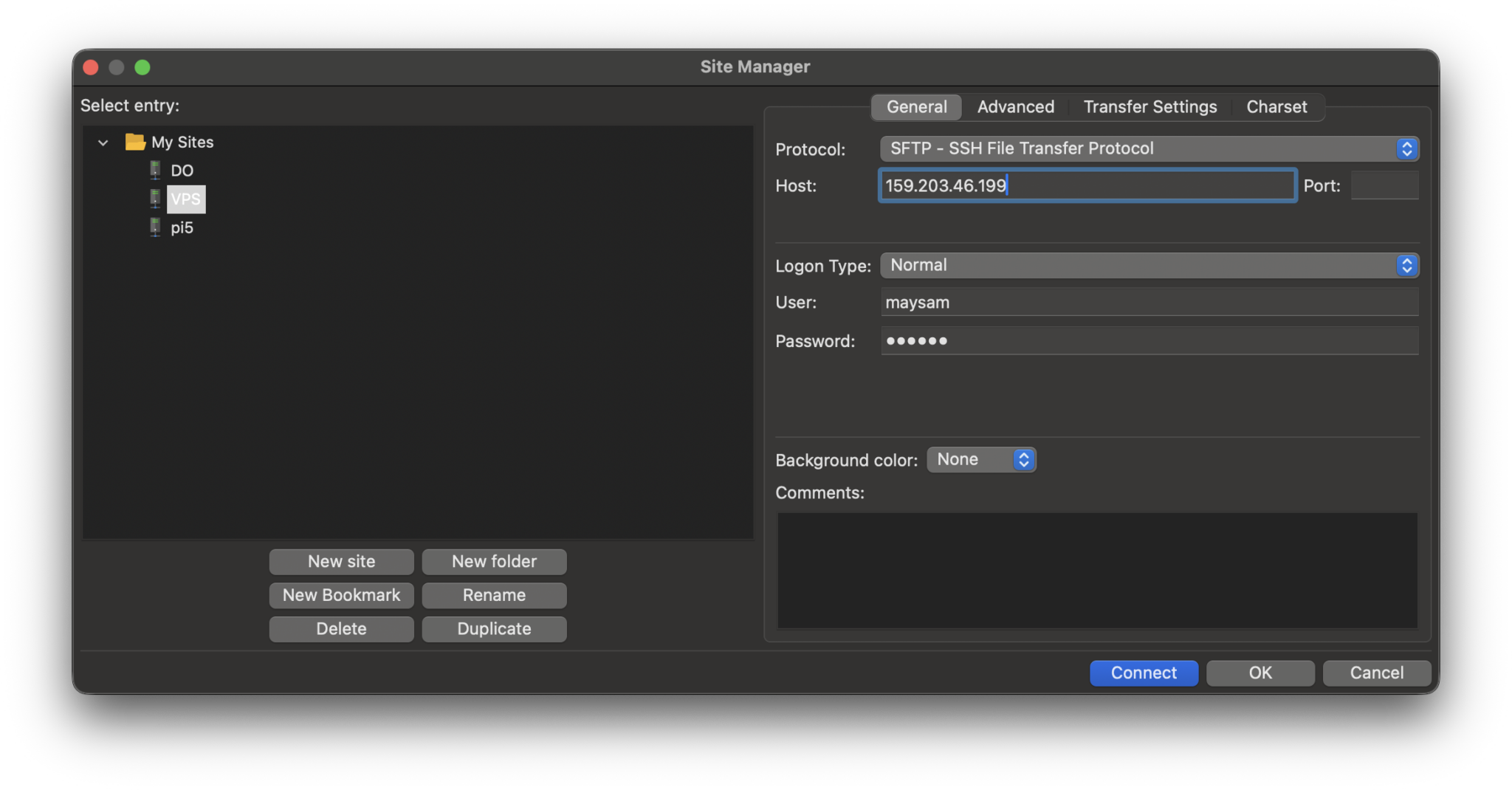
Not a very pleasant experience. Another option is editing the files directly through tools like Visual Studio, I didn’t find it very smooth either, it was slow and took me a few tries to connect. The last one is downloading the file on your computer, editing it and then uploading it to the server again. Might sound a lot of work, but it isn’t. All you need is an SFTP client. FileZilla is one that I always use and it’s free. Download and install it. Once it’s installed do the following steps:
- Create a new folder in your Downloads folder (or anywhere you like) to download the _config.yml file. I created a folder named “chronomoments”.
- Go to File menu and select Site Manager
- Click New Site
- In the right side of the Site Manager window you have a few fields. From the top, select “SFTP – SSH File Transfer Protocol” for Protocol
- In the Host field, put your server’s (droplet’s) IP. That number, from the first steps, 159.203.46.199. Leave the Port empty, it will use the default port.
- From the Logon Type, select “Normal“.
- For the User put the user you created in the earlier steps, maysam in my case and for the Password put the password you picked for your account then.
- Now select Connect.
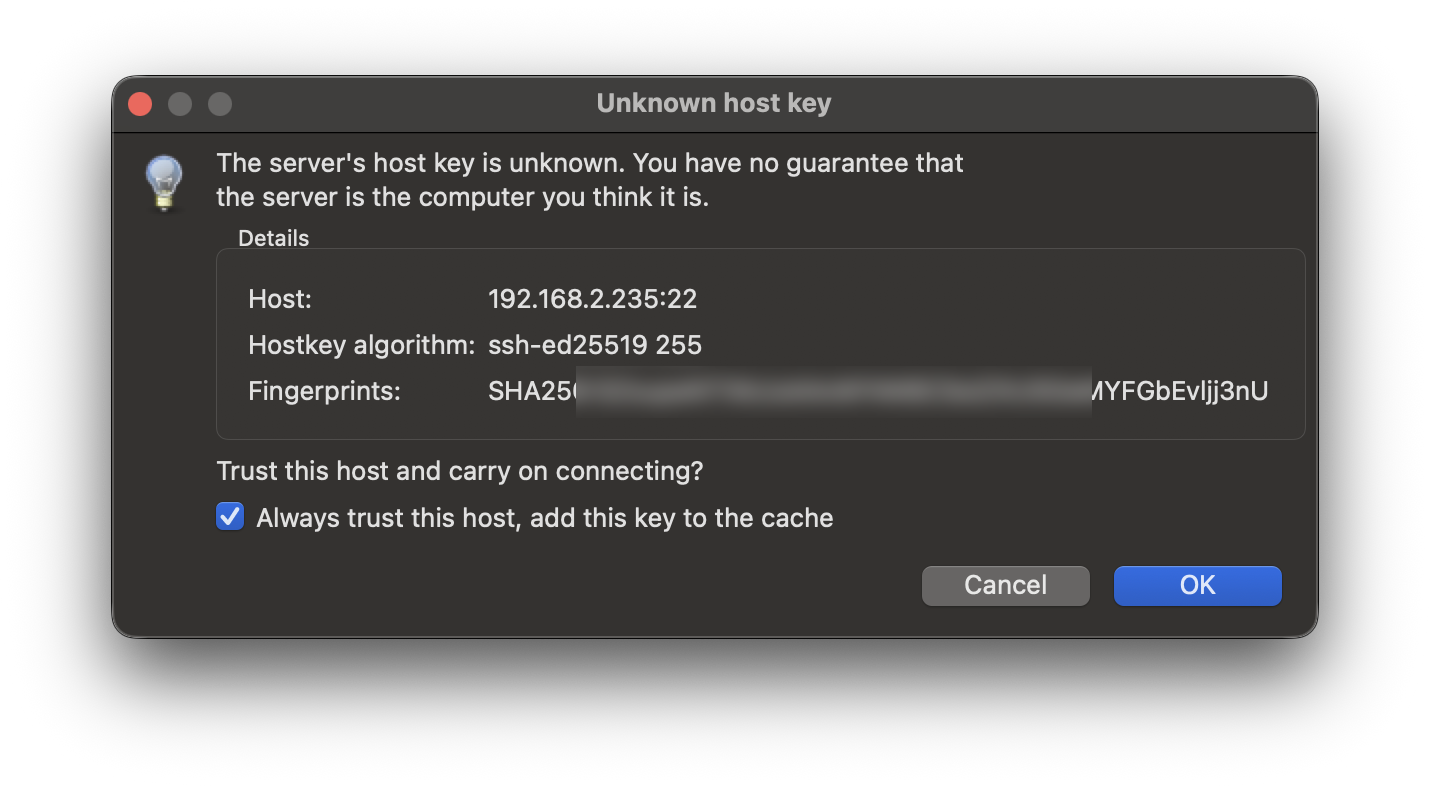
After clicking connect FileZilla would ask you if you trust the server, a similar question you responded to when you first connected to it through the Terminal window. Select okay and make sure you check “Always trust this host, add this key to the cache” so it won’t bother you every time. The reason it’s asking this question is because FileZilla has its own trust store and does not use the one your Terminal uses.
Now I have two panes on the FileZilla window. Local site, on the left side, and remote site, on the right side. I need to find the config file on the right side and then download it which will appear on the left side.
On the left side (local) it’s straight forward to find this newly created folder inside Downloads folder. On the right side it should be something like this if you followed the tutorial so far:
/home/maysam/photography-portfolioNeedless to say, your username goes instead of “maysam” there.
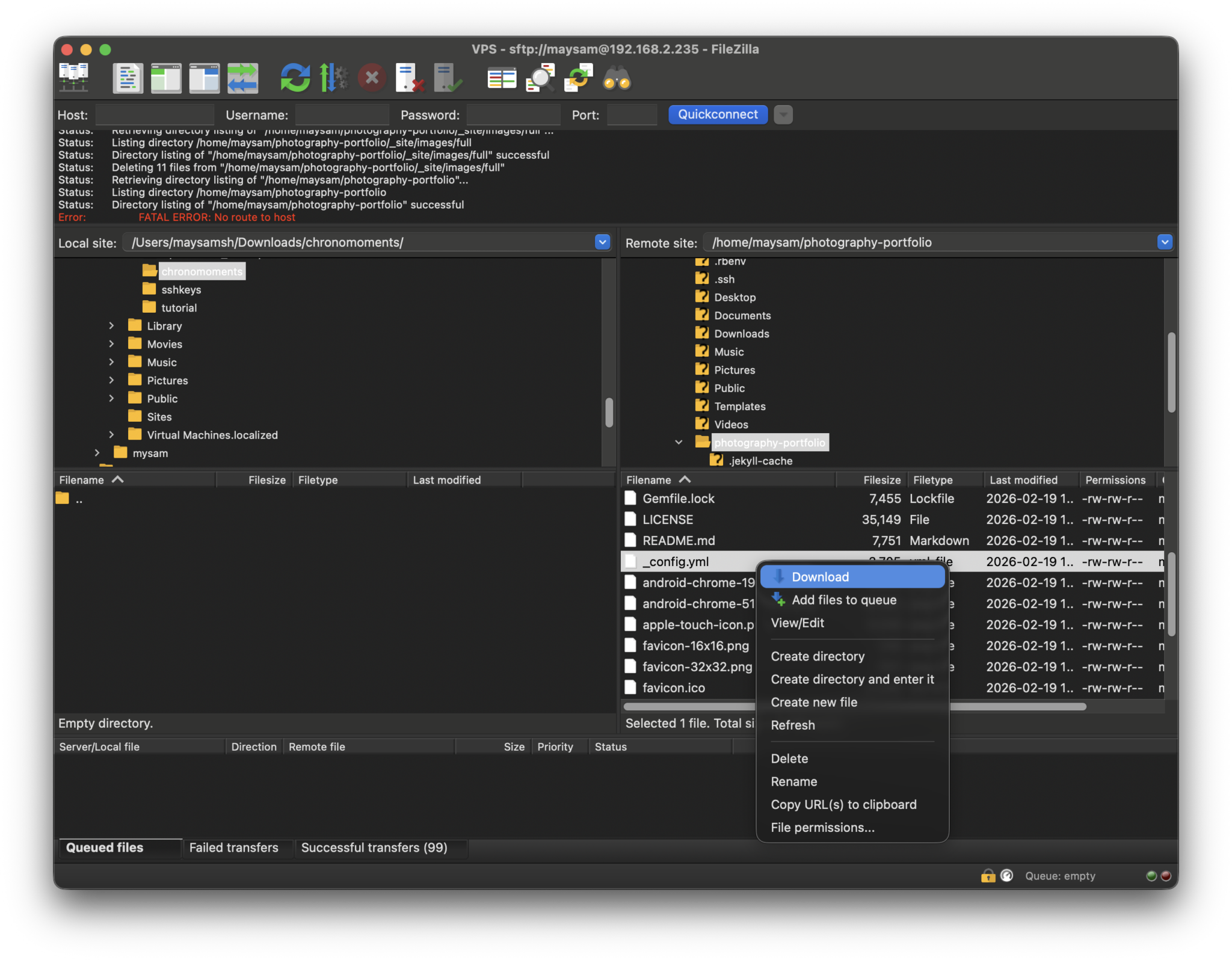
At the time of writing this part of the tutorial I had removed that Droplet and repeated everything on a local virtual-machine which is basically the same thing, so you can see the IP address on top of the window has changed (useless information).
You can find that _config.yml file on the right pane, right click on it and select download, it will appear on the left side. Now you can go to that folder and open it with a text editor, I’d recommend Visual Studio Code.
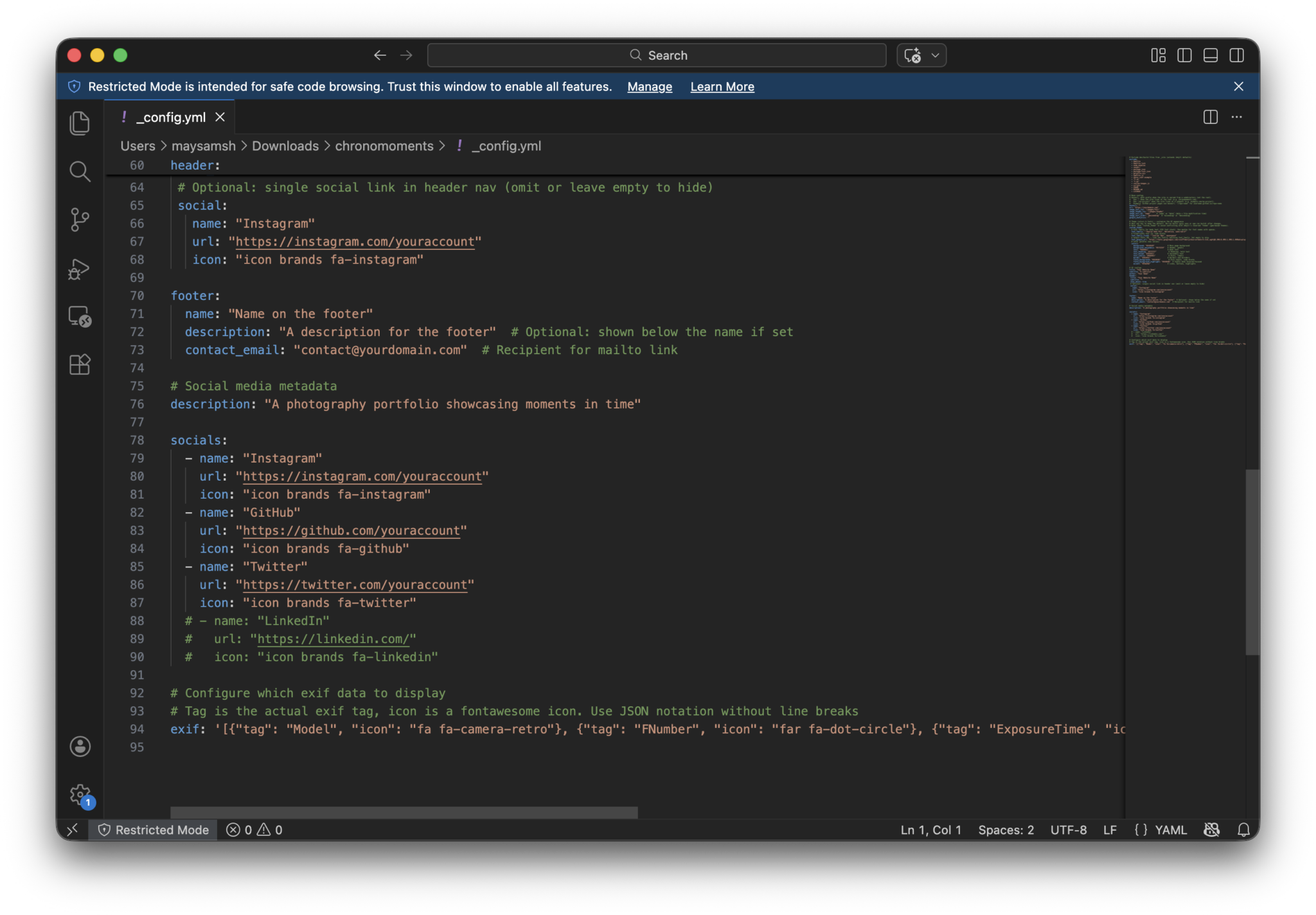
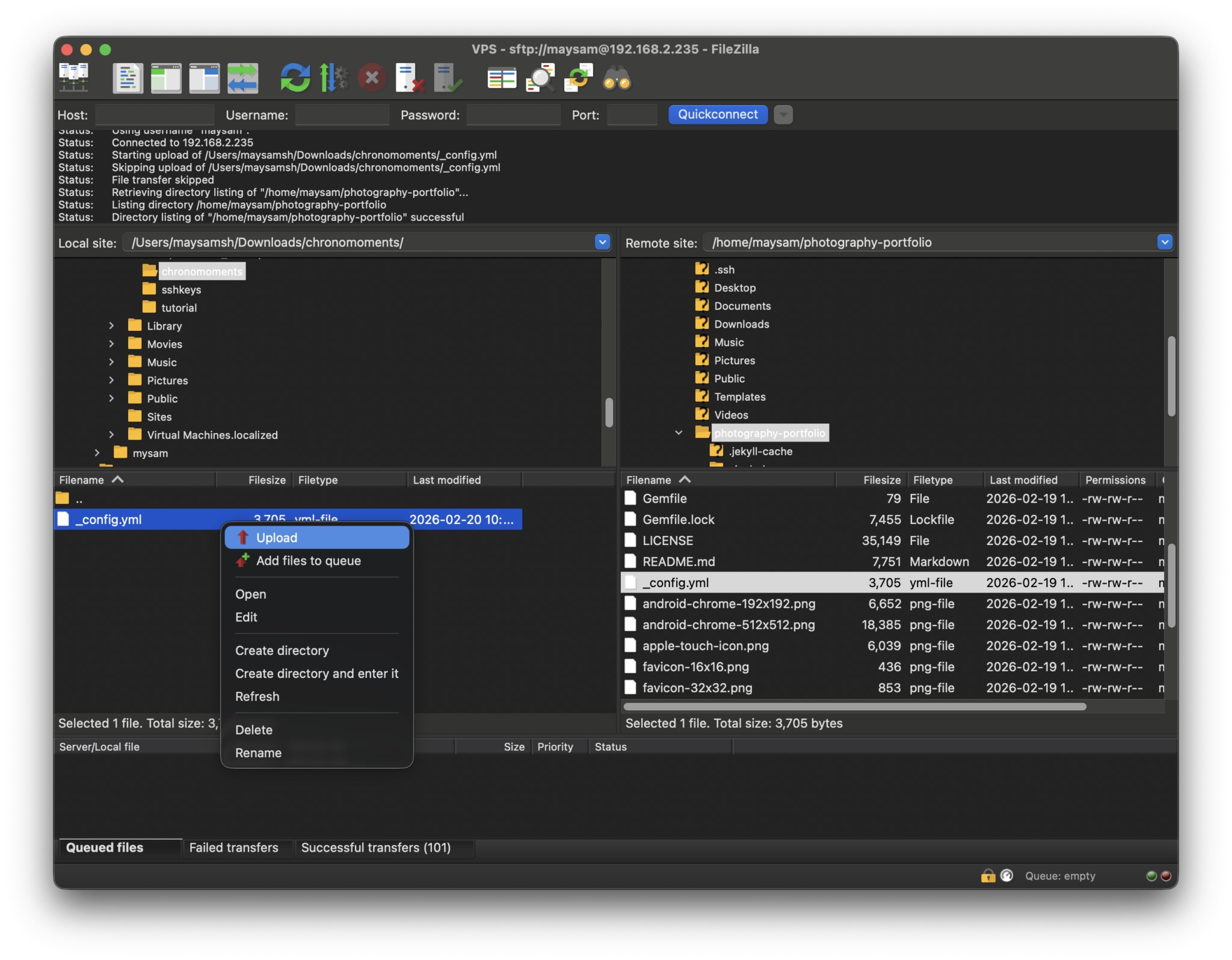
Here make your changes, then make sure you save them by selecting Save from File menu, or pressing Command+S shortcut. Now you can upload it back to the server. On the left pane right click on it and select Upload.
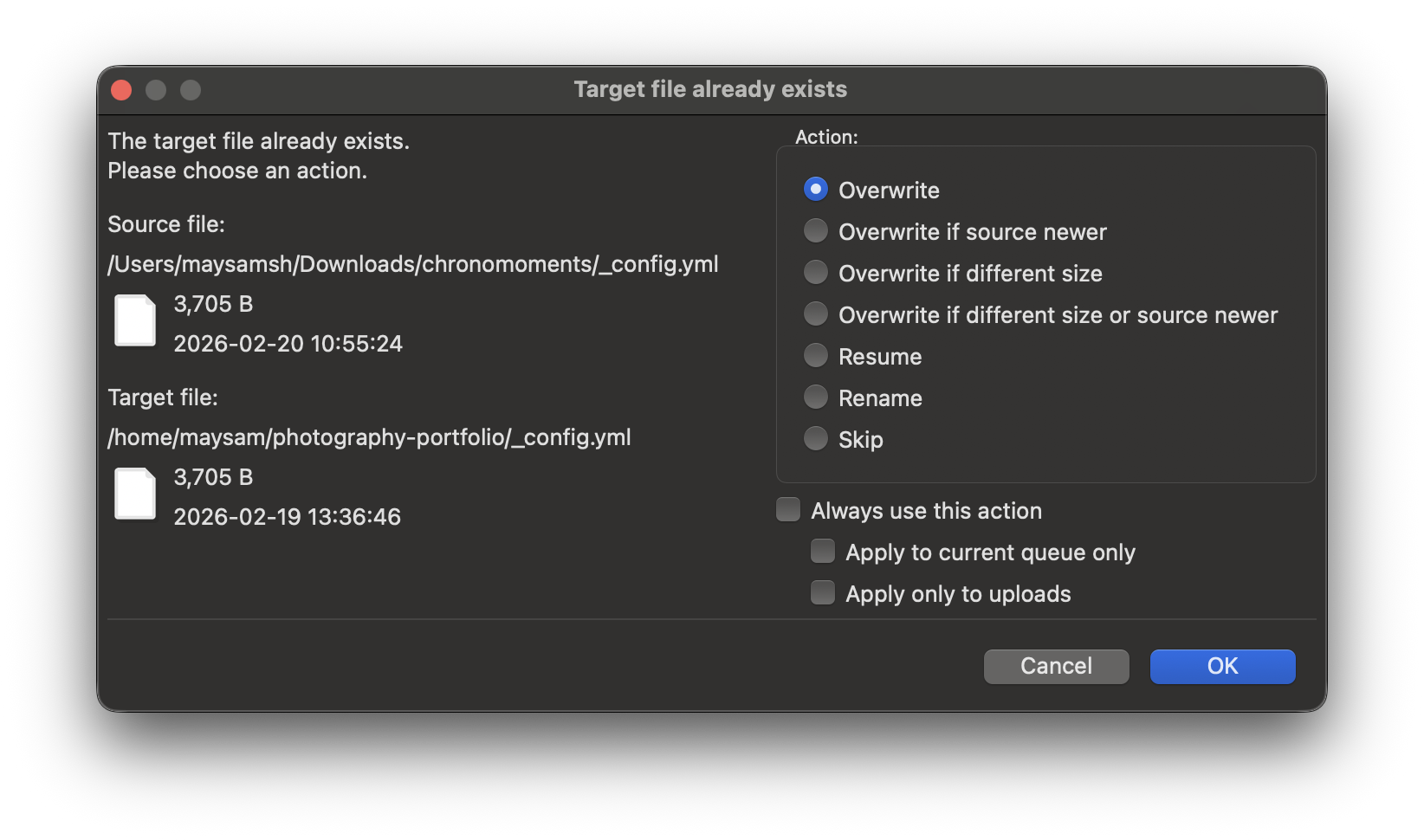
FileZilla will ask you to confirm overwriting the file, you should select Overwrite from the Action list.
17) Now you need to add your images to the images folder on the server. I’ve put a number of images there, you could test the website with them, then remove them and yours (I’ll explain it further ahead). So let’s try it first, run this command to prepare the files (styles, resizing, etc.):
npx gulpYou’ll see something like this:
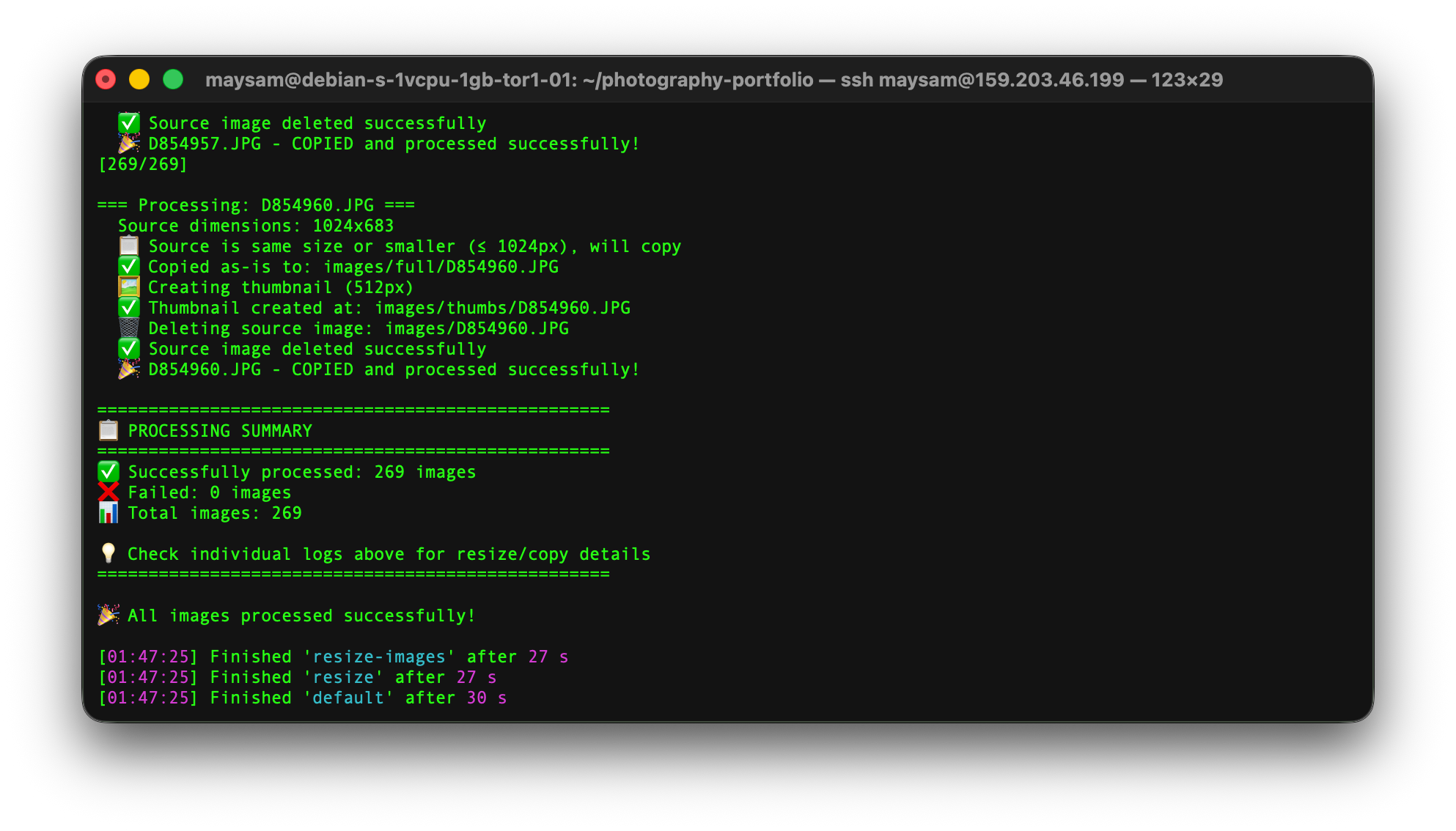
Now it’s time to generate the site content:
bundle exec jekyll build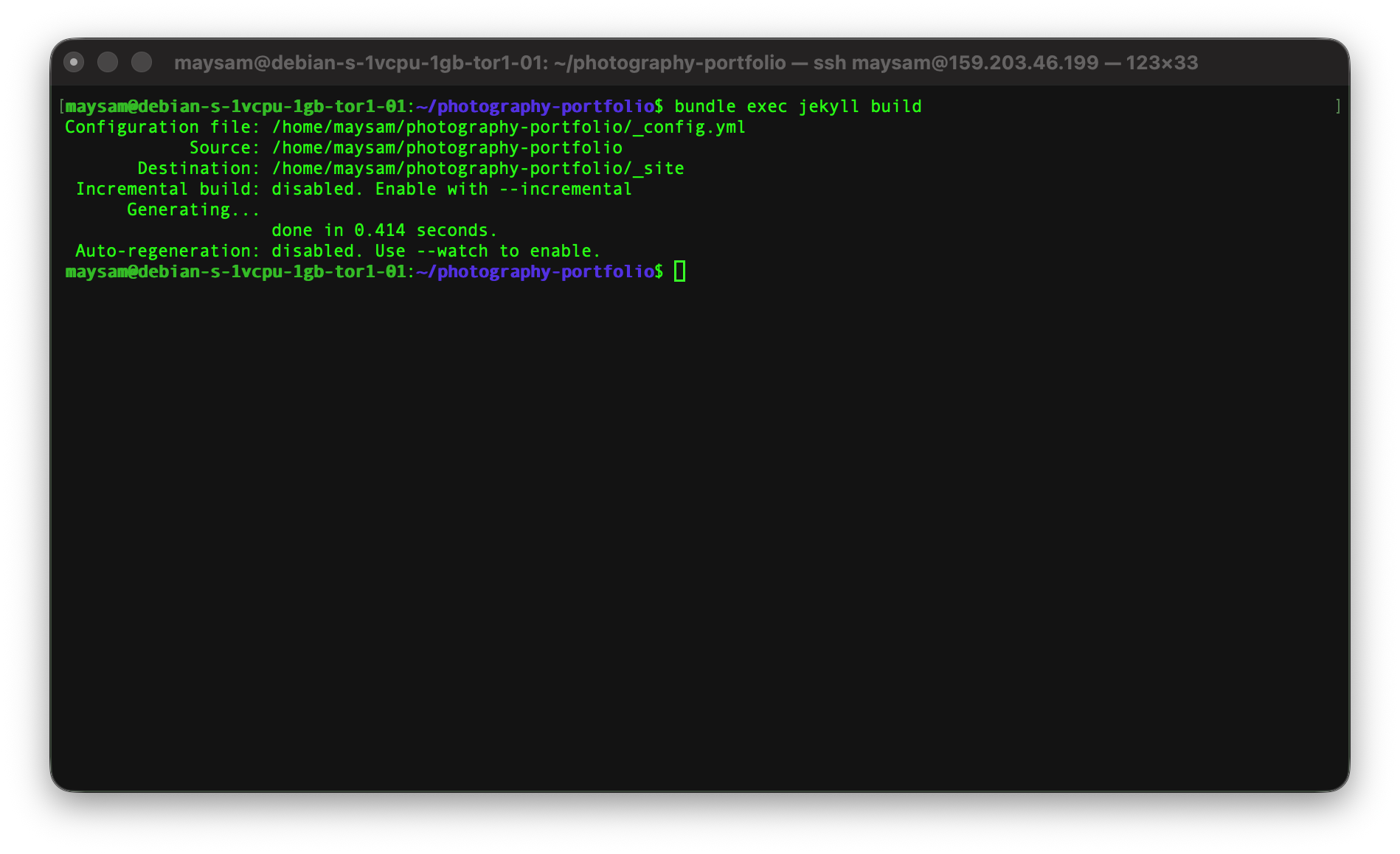
As you can see (and you should) the site is generate at /home/maysam/photography-portfolio/_site.
18) Now we have to install a web server that allows the browsers to read the site. Nginx is lightweight and easy to run choice that I’ve been using in the past few years. So I’m going with it here as well.
sudo apt install -y nginx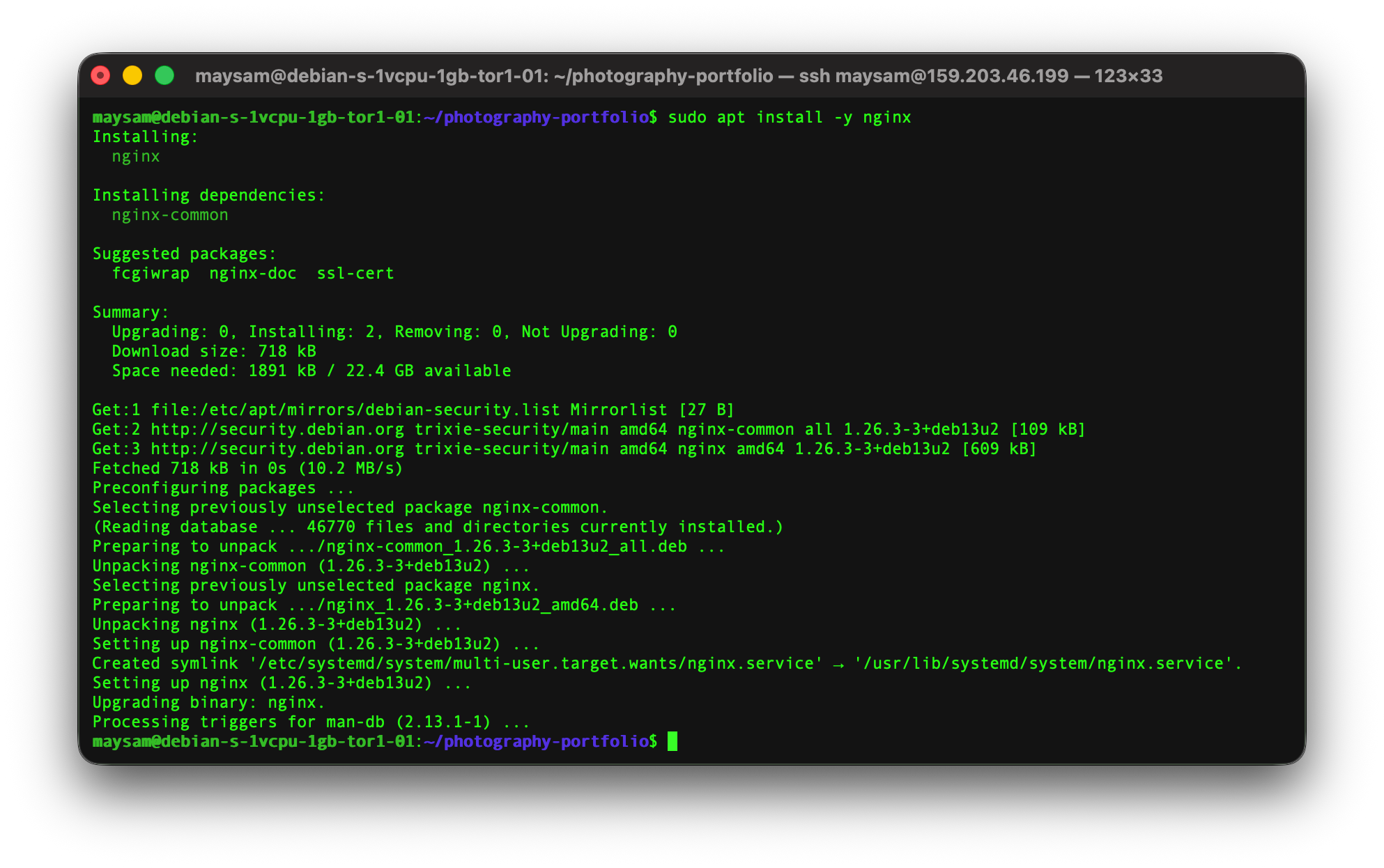
19) Nginx has its own structure of files. We can create a symbolic link to our _site folder and give that to the web server.
sudo mkdir -p /var/www
sudo ln -s /home/maysam/photography-portfolio/_site /var/www/photography-portfolio
These folders need proper permission to be able to be served through the web server we are going to install next. To do so, run the following commands:
chmod 755 /home/maysam
chmod 755 /home/maysam/photography-portfolio
chmod 755 /home/maysam/photography-portfolio/_site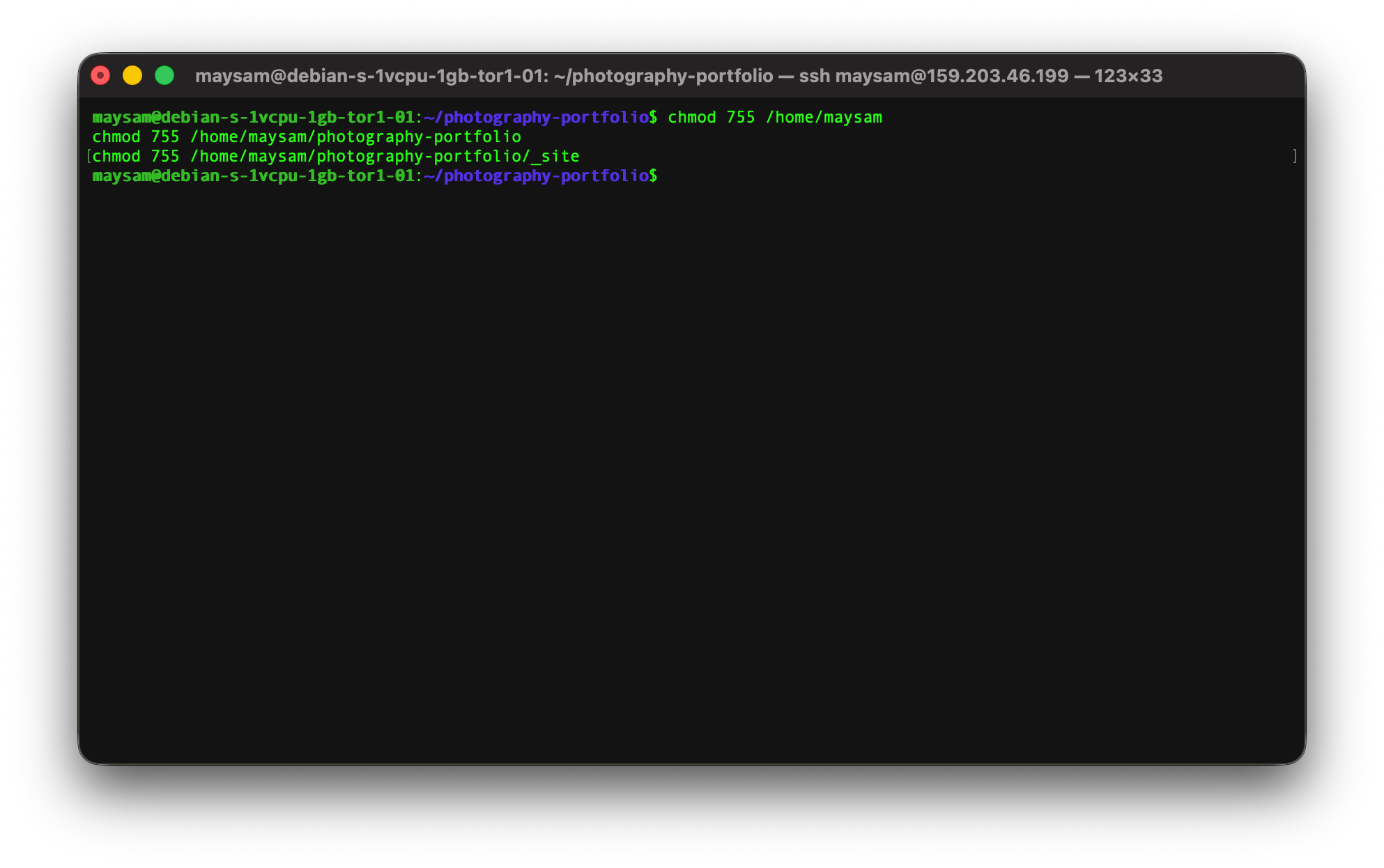
20) With Nginx you can serve multiple websites. Each website needs a config file that tells the server how its files should be served. For our simple portfolio we can use this simple config file. In the Terminal run this command:
sudo nano /etc/nginx/sites-available/photography-portfolioAnd then paste this content into the file. But after changing the domain name to the domain name you want to use for your website. I had a spare domain, yarmara.uk. I’d recommend to buy it, if you haven’t already, buy it from Cloudflare. Later in the process I’ll show how to connect the domain your server, but for now, you just need the domain name.
Paste the content (after changing the domain) into the window, then press Control+X then press enter:
#nginx config file

server {
    listen 80 default_server;
    server_name yarmara.uk www.yarmara.uk _;
    root /var/www/photography-portfolio;
    index index.html;

    location / {
        try_files $uri $uri/ $uri.html =404;
    }

    # Cache static assets
    location ~* \.(css|js|jpg|jpeg|png|gif|ico|svg|webp|woff2)$ {
        expires 1y;
        add_header Cache-Control "public, immutable";
    }
}
Now, we need to enable the site, and restart the nginx instance:
sudo ln -s /etc/nginx/sites-available/photography-portfolio /etc/nginx/sites-enabled/
sudo rm -f /etc/nginx/sites-enabled/default
sudo nginx -t
sudo systemctl reload nginx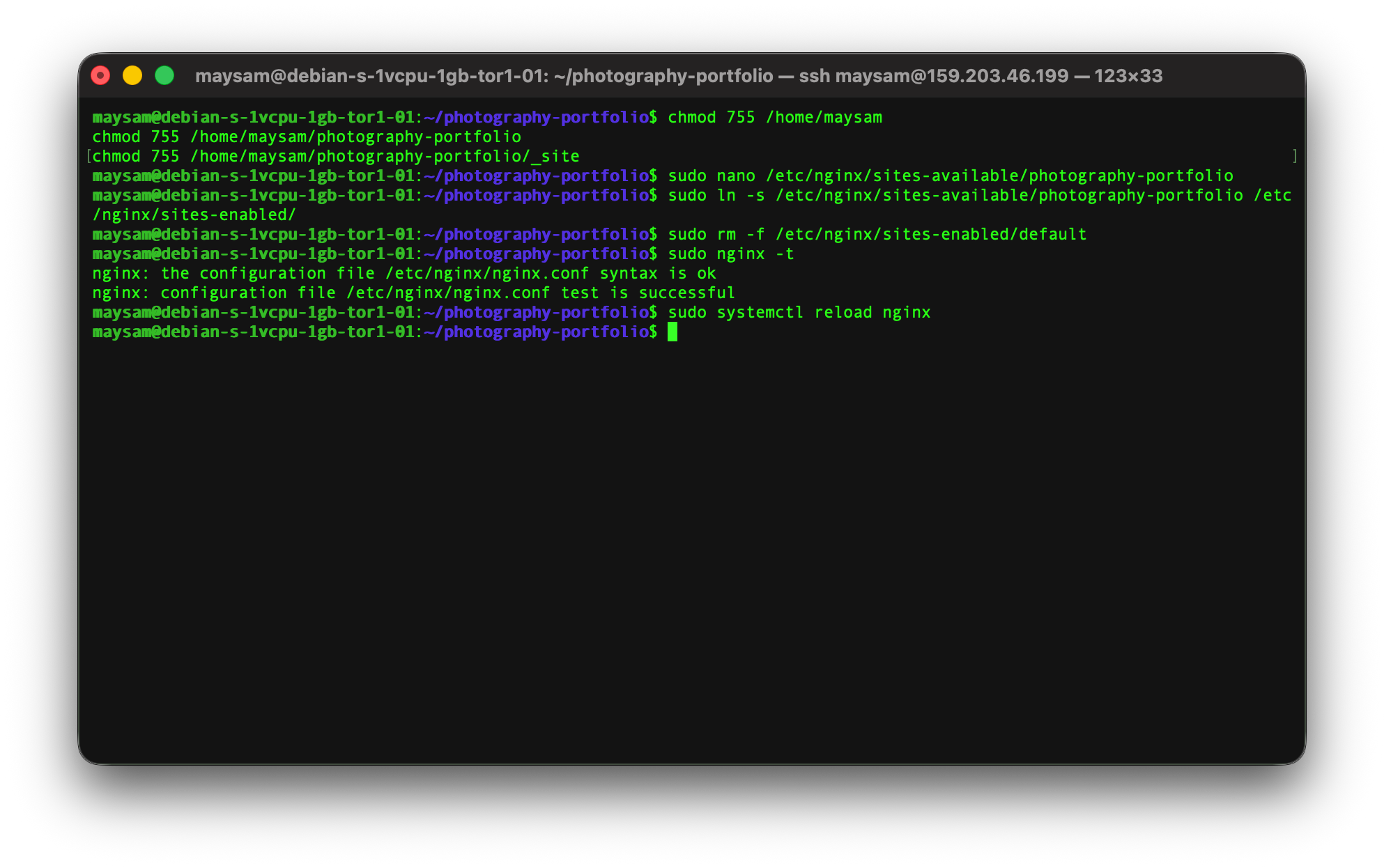
At this point if everything went through without any errors, you should be able to see the website by entering your server’s IP address in the browser, so in this case by entering http://159.203.46.199. (it’s not https, we’ll add it later).
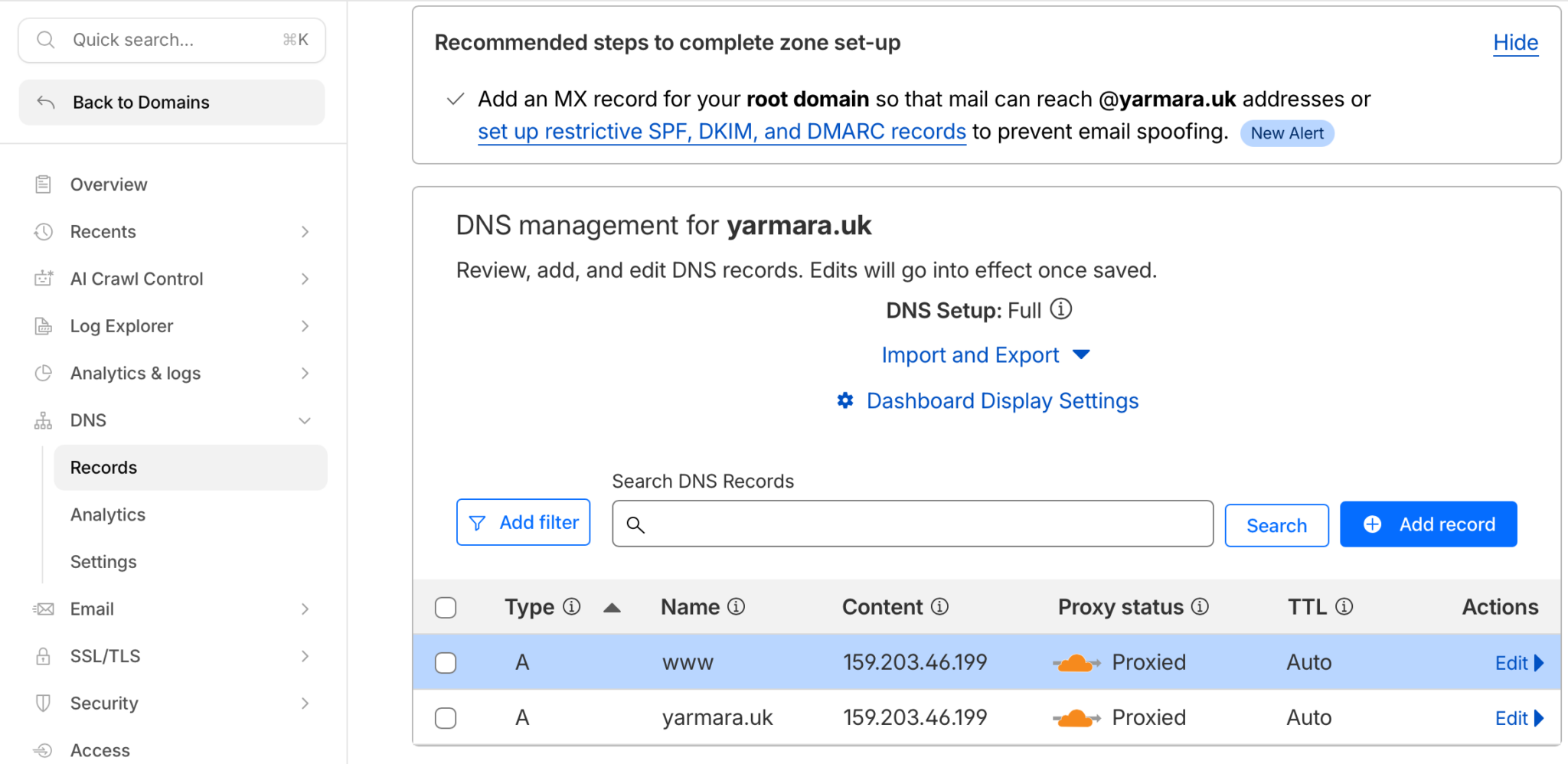
21) To connect the domain to the server (the Droplet), you need to go to the DNS section – I am assuming you bought it from Cloudflare – of the domain and then add two records there, like the image below:
| Type | Name | Content | A |
| A | @ | 159.203.46.199 | Proxied or DNS only |
| A | www | 159.203.46.199 | Proxied or DNS only |
22) The last step in making the website ready for the web is adding SSL support (using https to browse the website). First, install the certbot for nginx. This bot runs on a schedule to renew the SSL certificates for your domain:
sudo apt install -y certbot python3-certbot-nginx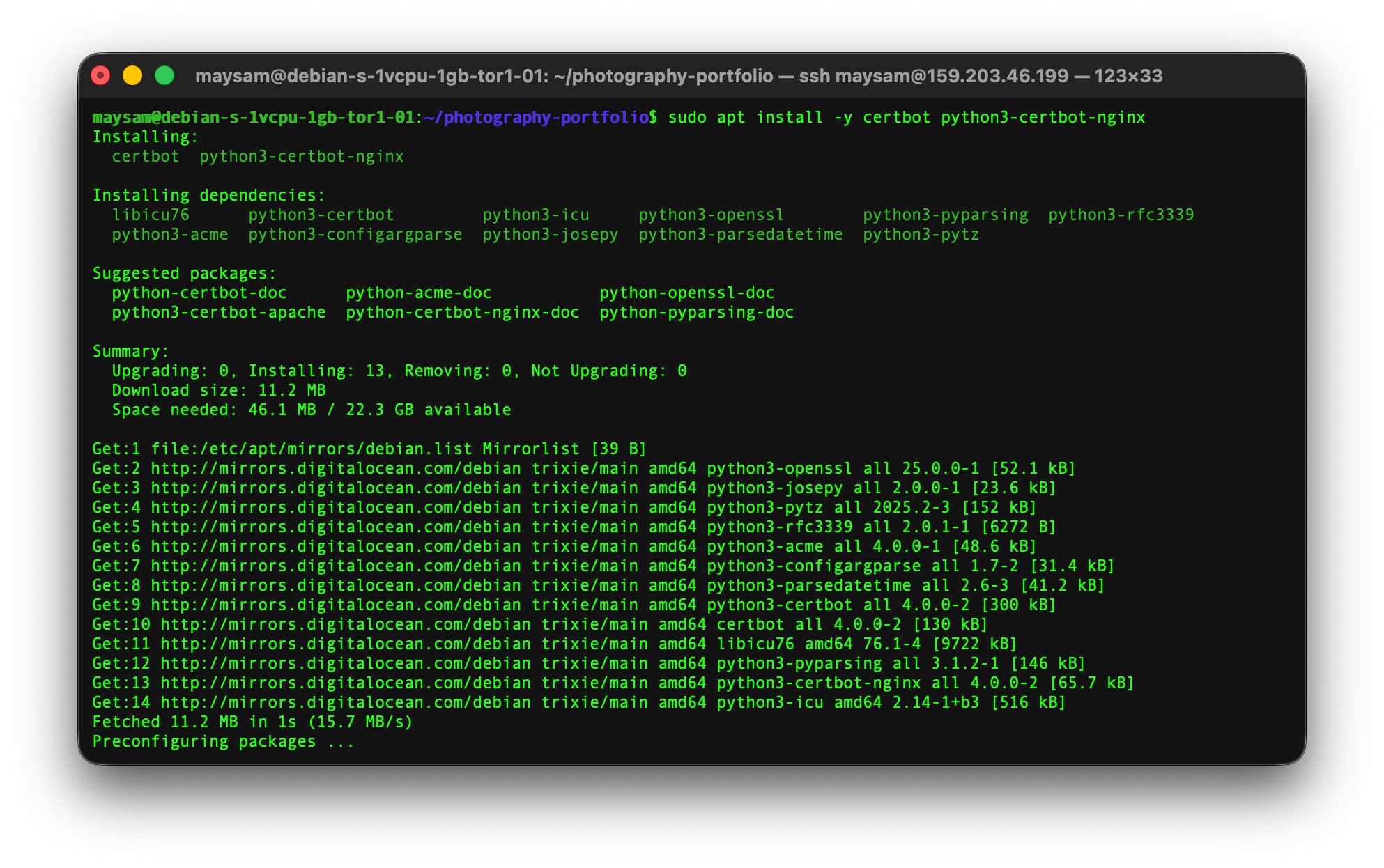
Now with the certbot we can request certificates for our domain. Again, make sure you replace the domain name with your own domain name:
sudo certbot --nginx -d yarmara.uk -d www.yarmara.uk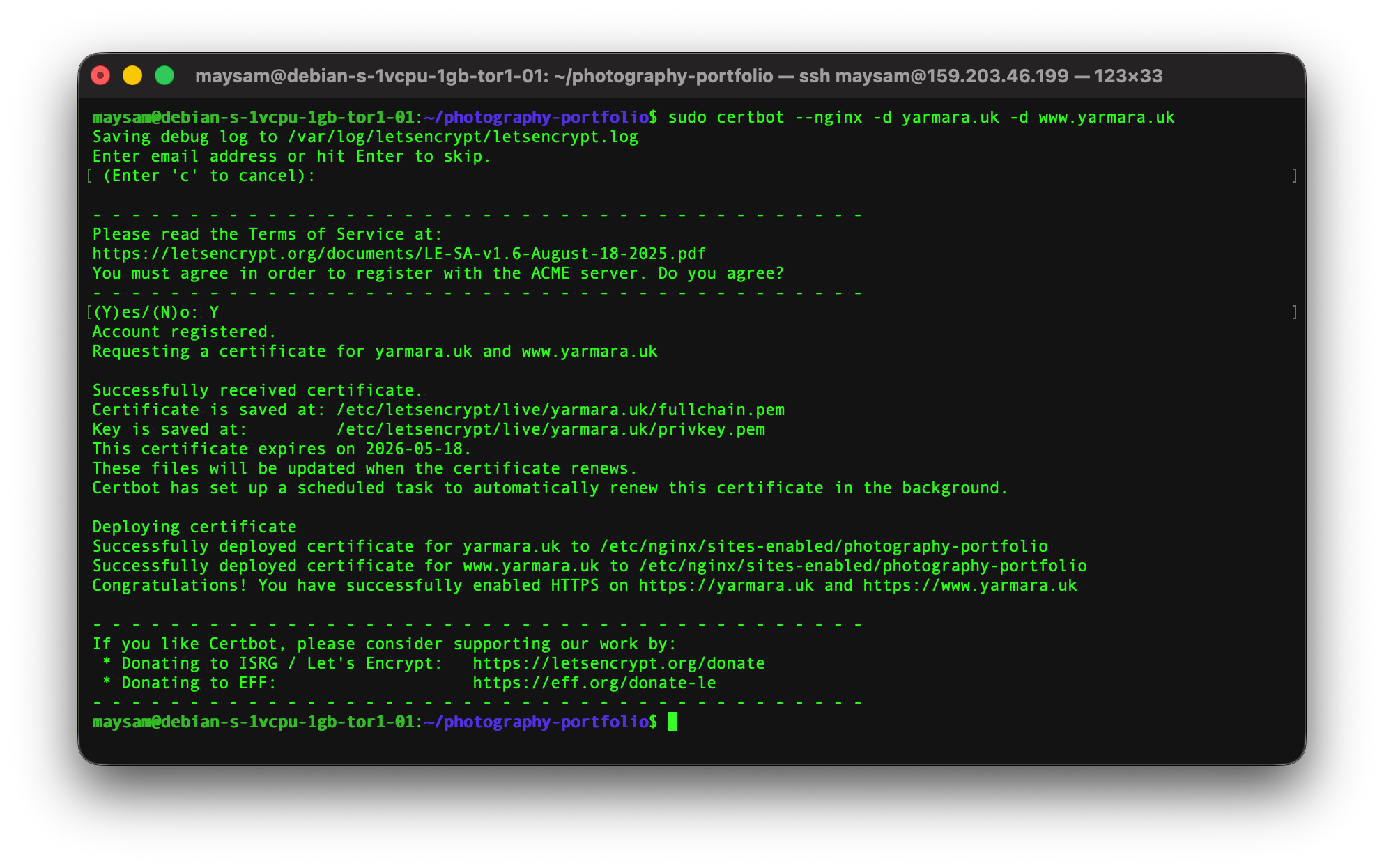
That was the last step in publishing your portfolio, now it’s accessible:
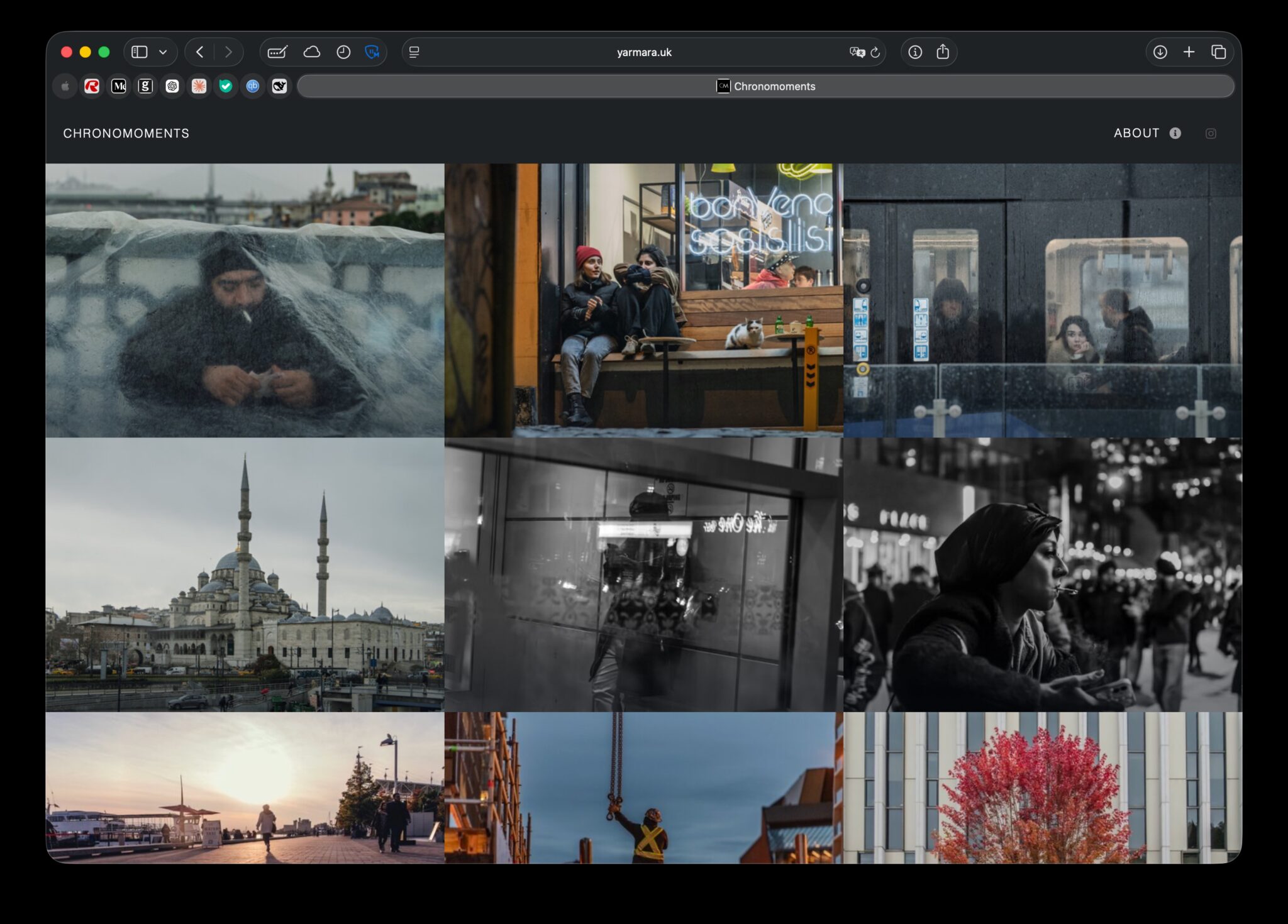
These are my images I put in the repo, now that everything is working as expected, we can go back and change them. I’ll put a script in the repo you can run to delete these images. Run this in the Terminal:
./scripts/clear-images.shBe aware, every time you run this, it will delete every image you have inside images folder and its subdirectories.
Now you can go back to FileZilla, drag and drop some images into the images folder on the remote site (right side):
Now you can run the resize and build commands, and your website will be updated:
npx gulp resize
bundle exec jekyll build
Note: If you decide to change something in the _config.yml file, you need to run both of these commands in the same order to see the changes reflected:
npx gulp
bundle exec jekyll build
Want your own icon in the browser tab? Use favicon.io: pick the image converter, upload a 512×512 image (or use their text or emoji generators if you prefer), then download the zip. Drop the files from the zip into your project root and overwrite the existing ones (apple-touch-icon.png, favicon-32x32.png, favicon-16x16.png, and site.webmanifest if you got it). Rebuild the site and you’re done.
For more technical information go to the repo at https://github.com/maysamsh/photography-portfolio